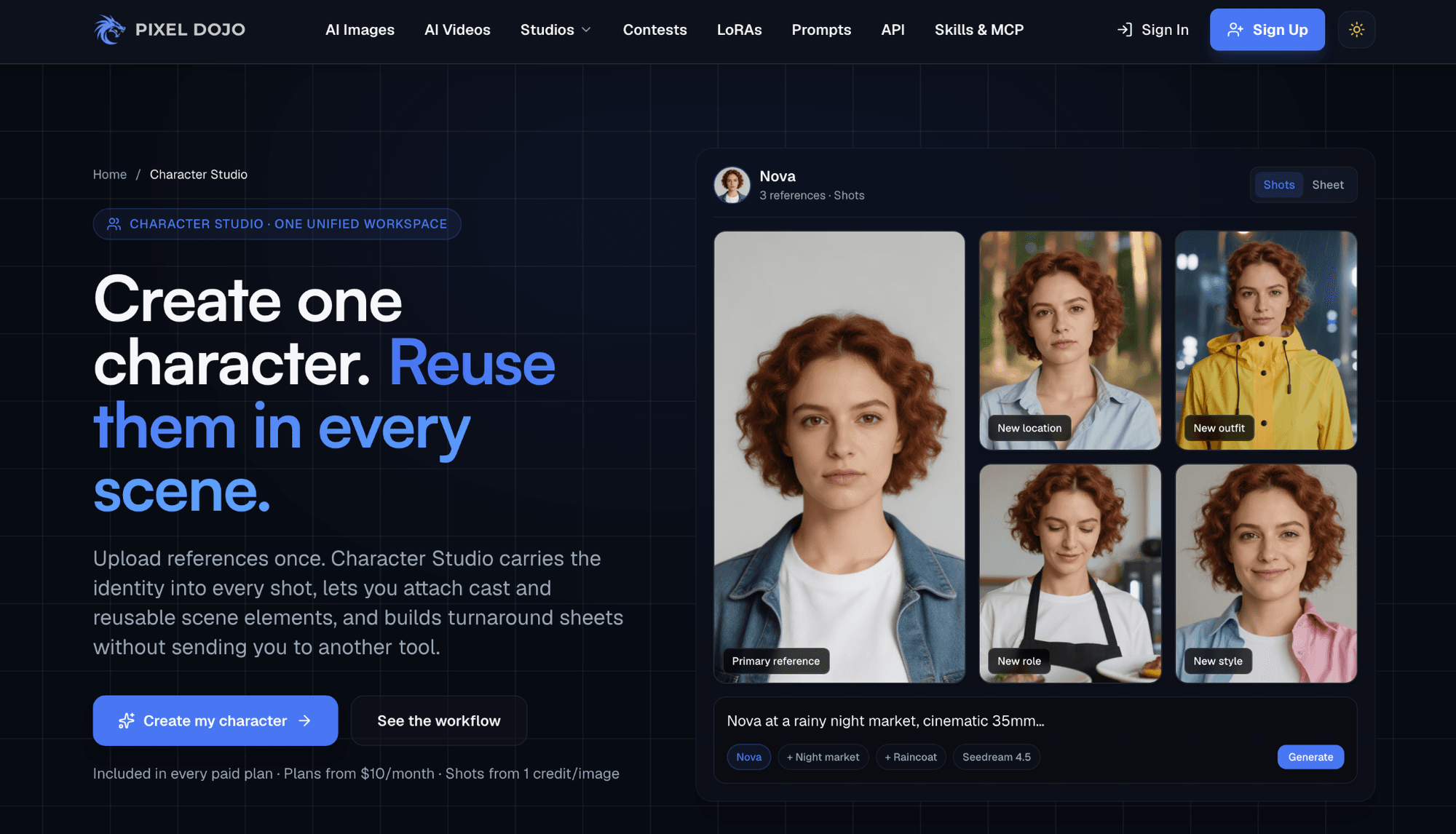
How to Create a Consistent AI Character in Minutes
Getting an AI character generator to produce the same face, outfit, and proportions across multiple images isn't obvious.
Most people open a tool, type a prompt, and get a great result, only to watch it fall apart completely on the second generation.
The character's jaw changes, hair color shifts, the whole vibe drifts.
That inconsistency kills any project that needs recognizable characters, whether it's a webcomic, a tabletop RPG campaign, or a children's book illustration series.
A solid AI Character Creator can handle a lot of the heavy lifting, but consistency still comes down to how you use it.
Here's how to lock down a repeatable character across every generation.
Start With a Detailed Character Reference Sheet
A reference sheet is the single most important step, yet most people skip it entirely.
Before generating scenes or poses, use your AI character generator to produce one clean, well-lit, front-facing portrait.
Your reference should nail down specifics: skin tone (not just "tan," think warm olive with cool undertones), exact hair style (shoulder-length box braids, not just "braids"), and clothing details like a fitted denim jacket with brass buttons.
Vague prompts produce vague results.
The AI has no memory between generations, so your prompt language is the only thread holding things together.
Save that reference image and feed it back into every future generation as a visual anchor.
Write a Locked Prompt Template
Treat your character prompt like a recipe, same ingredients, same order, every time.
A locked prompt template means you write one detailed description and reuse it word-for-word as the foundation for every new image.
Something like: "A 30-year-old woman with deep brown skin, close-cropped natural hair, angular cheekbones, wearing a maroon turtleneck and silver hoop earrings, in the style of modern digital illustration."
That core block stays identical across generations.
The only thing you change is the scene, pose, or action layered on top.
Swapping synonyms, using "crimson" one time and "dark red" the next, is enough to throw consistency off.
AI models interpret language literally, and even small wording shifts can cascade into visible changes across facial features, body type, and wardrobe.
Use Image-to-Image Instead of Text-to-Image

Pure text prompts give the AI too much creative freedom, which is exactly what you don't want when consistency matters.
Image-to-image generation flips the dynamic.
You feed in your reference portrait alongside your prompt, and the model anchors its output to that visual.
Upload your reference image, set the influence strength somewhere between 60 and 80 percent, and let the prompt handle the new context.
The result holds the character's core features steady while adapting pose, lighting, and background.
This single technique eliminates probably 70% of the drift people complain about.
Pin Down Art Style Early
Style inconsistency is almost as disruptive as face inconsistency.
If your first image looks like a 3D animated render and your second looks like a Japanese watercolor, the character won't feel like the same person even if the features technically match.
Pick a specific art style and embed it into your locked prompt.
Generic labels like "cartoon" or "realistic" are too broad because they leave room for the AI character generator to interpret freely.
Something like "cel-shaded digital art with bold outlines, flat color fills, and soft ambient occlusion" gives the model much less room to wander.
Every element, from linework to shading approach to color palette, needs to stay locked together across the entire project.
Control Lighting and Camera Angle Explicitly
Changing the lighting or camera angle without specifying it precisely will alter how the AI renders facial features.
A character lit from below looks dramatically different from one lit with soft overhead diffusion.
Three-quarter view versus dead-on profile can shift jawlines, nose shapes, and eye spacing.
When building a scene, spell out the lighting setup.
"Warm directional light from upper left, soft fill from the right, neutral background" gives the model a concrete framework.
Same goes for camera perspective; specify "medium close-up, eye-level angle" rather than letting the AI default to whatever it wants.
These technical details sound fussy, but they're what professional concept artists control obsessively.
Use Seed Numbers When Available
Seed numbers are the closest thing to a "repeat exactly" button in AI image generation.
A seed is a numerical value that initializes the randomness in the model, so the same seed plus the same prompt theoretically produces the same image.
In practice, seeds won't give you a perfect clone every time, especially across different prompts.
But they dramatically reduce random variation.
Tools like Pixel Dojo and others built on open-source diffusion models typically expose seed controls directly.
If your tool supports it, write down the seed from your best reference image and reuse it across future generations.
Build a Character Turnaround Set

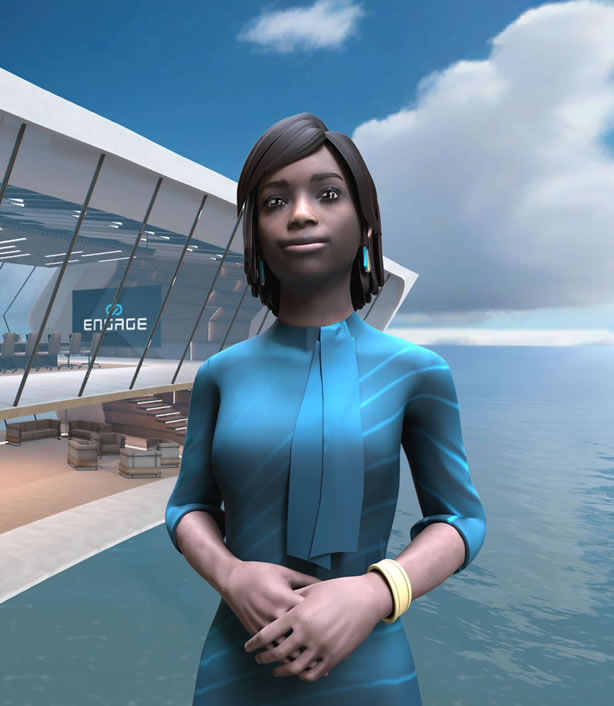
Before placing your character in action shots or story panels, generate a turnaround set: front view, three-quarter left, profile, three-quarter right, and back view.
All against a plain background, all using your locked prompt.
This serves two purposes.
It stress-tests your prompt and reference setup, so if the character drifts between angles, you catch it now instead of mid-project.
It also gives you a library of reference images to feed into future generations, meaning the AI has multiple visual anchors instead of just one.
Professional animation studios have done character turnarounds on paper for decades.
The AI workflow mirrors that exact process, just faster.
Five clean angles can take under ten minutes with the right setup.
Batch-Generate and Curate
Generating one image, tweaking, regenerating, tweaking again- this loop burns time and often makes things worse.
A better approach: generate four to eight variations in a single batch, then cherry-pick the best results.
Batch generation lets you see the range of variation your current settings produce.
If all eight outputs look recognizably like the same character, your setup is solid.
If three out of eight drift noticeably, that's a signal your prompt or reference needs tightening.
The best outputs from each batch become additional anchors for future generations, creating a feedback loop that tightens consistency over time.
Keep a Living Style Guide
Once you've nailed your character's look, write it all down in one place.
Prompt text, seed number, art style description, reference image filenames, tool settings, influence strength percentages, everything.
A style guide turns tribal knowledge into something reproducible.
This matters especially if you're collaborating with someone else, or if you step away from the project for weeks and need to pick it back up.
AI character generation workflows are surprisingly fragile.
Lose one setting, and you're reverse-engineering your own process.
The format doesn't matter; a simple doc or notes page works fine.
What matters is that every decision is documented and retrievable.
Pulling It All Together
Consistency from an AI character generator isn't a feature you toggle on.
It's a workflow you build.
Reference sheets, locked prompts, image-to-image generation, seed control, and deliberate style management all stack together.
Each layer reduces the randomness the AI introduces, and the cumulative effect is a character that looks like the same person across dozens of outputs.
The tools keep improving, and newer models handle consistency better than anything from even a year ago.
But the fundamentals here- specificity, repetition, and systematic curation- will hold regardless of which platform you're using.
