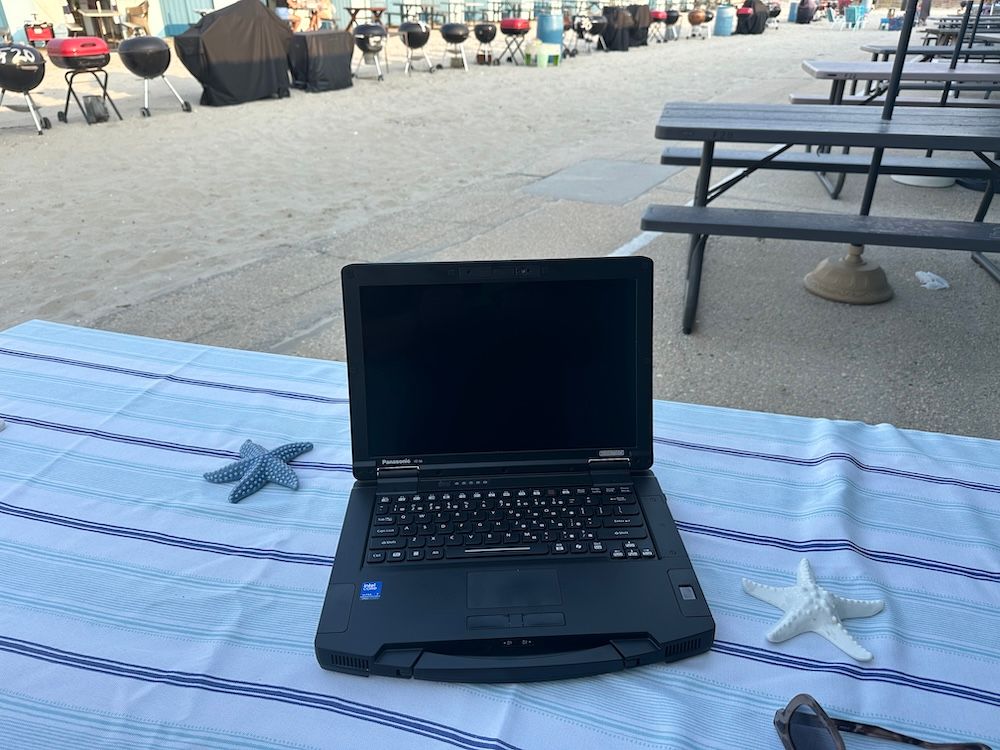
Panasonic TOUGHBOOK 56 Review: Three Months of Hands-On Testing
Review disclosure: Panasonic provided a loaner TOUGHBOOK 56 for this three-month review.
Editor’s note: This article updates GearBrain’s original TOUGHBOOK 56 first look with findings from three months of hands-on testing.
Panasonic TOUGHBOOK 56 Review: Quick Verdict
Is the Panasonic TOUGHBOOK 56 worth buying? Based on three months of GearBrain testing, the TOUGHBOOK 56 is an excellent choice for professionals who need a durable, reliable laptop for demanding work environments. It delivered approximately 12 hours of battery life with a single battery, remained readable in direct sunlight, and handled office work, video calls, and AI applications without issues. Its biggest drawbacks are weight and premium pricing.
Best for: Construction professionals, utility workers, field technicians, government employees, and mobile professionals.
Biggest strengths: Rugged construction, outdoor-readable touchscreen, battery life, and configurable hardware.
Biggest limitations: Weight, cost, and configuration-dependent docking and expansion options.
GearBrain Rating: 9/10
A rugged laptop needs to do more than look tough. It needs to let you get work done when your office is a train seat, a job site, or an outdoor location where heat, humidity, and dirt are part of the day.
After our initial look at the Panasonic TOUGHBOOK 56, I spent three months using it in my office, on the train to work, and at the beach. I worked sitting in the sand on several occasions, exposed the laptop to sun, heat, humidity, and wind, and dropped it into the sand multiple times. Throughout that use, it kept performing without issues.
The experience made its appeal clear: this is a capable work laptop for people who value durability and flexibility. It is also noticeably heavier than the MacBook Pro I use, so buyers should weigh that practical cost against the protection they need.
What Is the Panasonic TOUGHBOOK 56?

The TOUGHBOOK 56, also identified as the FZ-56, is a rugged laptop with configurable hardware for mobile professionals. Instead of offering one fixed set of features, Panasonic gives businesses options to match the computer to their workers’ equipment and applications.
Key manufacturer specifications include:
| Feature | Panasonic’s listed specification or option |
|---|---|
| Processor | Intel Core Ultra Series 2 |
| Display | 14-inch WUXGA, 16:10; optional 1000-nit touchscreen |
| Dedicated graphics | Optional AMD Radeon PRO W7500M with 8GB memory |
| Wireless | Wi-Fi 7 and Bluetooth; optional cellular connectivity |
| Camera and audio | 5MP webcam, dual-array microphone with AI noise reduction, speakers rated up to 98dB |
| Expansion | Configurable modules and additional ports; availability depends on version |
| Durability | Manufacturer lists MIL-STD-810H testing, IP53, and a three-foot drop rating |
These are product-family specifications; available options vary by configuration. Our tested unit had the following hardware:
| Component | Tested configuration |
|---|---|
| Model identifier | FZ56-1 |
| Processor | Intel Core Ultra 7 |
| Installed RAM | 32GB |
| Storage | 1TB |
| Graphics | Intel Arc 140T integrated GPU |
| Display and input | Touchscreen with pen |
Our unit used Intel graphics rather than the optional AMD dedicated GPU. The findings below describe this configuration and the situations I actually tested.
How We Tested the TOUGHBOOK 56
My testing centered on everyday work across three settings: the office, commuter trains, and the beach. This included work developing GearBrain Assistant and using ChatGPT, Gemini, Microsoft Azure and Azure AI Foundry, and Microsoft Copilot. I also used Google Workspace and Microsoft 365, and joined Zoom, Microsoft Teams, and Google Meet video calls.
In the office, I used Wi-Fi 6. Away from the office, I also connected through my smartphone’s personal hotspot. At the beach, I worked in sunny, hot, and humid conditions, with sand and wind around the computer.
These were practical use observations rather than controlled laboratory tests. The drops were into sand; they don't show how the laptop would behave after a fall onto concrete. Similarly, using it in humidity doesn't prove protection against immersion or saltwater exposure. Our testing also did not include Wi-Fi 7 benchmarking or dedicated local AI performance measurements.
How Well Does the TOUGHBOOK 56 Handle AI and Everyday Work?
The TOUGHBOOK 56’s solid construction was one of its strongest qualities during testing. It felt well suited to working outside, where a conventional office laptop can be awkward to use and easy to worry about.
At the beach, I sat in the sand and worked on several occasions. The laptop faced sun, heat, humidity, and wind, and we repeatedly dropped it into the sand. I noticed no performance problems before or after those incidents. I also experienced no moisture-related issues during this use.
For me, the useful outcome was continuity: I could keep working. The computer didn't become unreliable just because I moved outside.
Among the laptops I have personally tested, the TOUGHBOOK 56 is the toughest and most rugged. That judgment is based on my experience with those machines, not a claim that it outperforms every rugged laptop available.
Design and Portability: Strong Construction, Noticeable Weight
I liked the TOUGHBOOK 56’s design and sturdy feel. The handle is a practical addition for moving the computer between work locations. For workers using a compatible docking configuration, it also makes sense when taking the laptop from a desk or vehicle to a job site.
Weight is the drawback I noticed most. Compared with my MacBook Pro, the TOUGHBOOK felt heavy to carry around. That matters on a commute, during frequent travel, or whenever the computer spends much of the day in your bag.
The handle helps with short moves, but it does not remove the burden of carrying a heavier laptop. If portability means walking long distances with all your equipment, consider that carefully before buying.
For a worker whose equipment needs to handle demanding surroundings, the tradeoff can be worth it. If your work stays indoors, a lighter laptop may be a better fit.
Panasonic TOUGHBOOK 56 vs. a Traditional Business Laptop
The biggest difference between the Panasonic TOUGHBOOK 56 and a conventional business laptop is the emphasis on durability, configurability, and use outside a traditional office.
While standard laptops often prioritize lightweight construction and portability, the TOUGHBOOK 56 is designed for professionals who need reliable computing in more demanding conditions. Its rugged design, outdoor-readable display, configurable connections, and optional docking capabilities can be valuable for field work.
The tradeoff is additional weight and higher cost. If you primarily work indoors, a conventional business laptop may be the more practical choice. If your work regularly takes you outdoors or into environments where equipment durability matters, the TOUGHBOOK 56 becomes a more compelling investment.
Keyboard, Touchpad and Camera Privacy
The keyboard was comfortable to use, and I liked the key action for everyday work. The touchpad responded well, too. Those details matter when you are working away from your usual desk and relying on the computer’s built-in controls.
I particularly appreciated the keyboard backlight timeout. It prevents the lighting from staying on unnecessarily and is a useful power-saving feature, though I didn't measure its impact on battery runtime.
The camera’s physical privacy shutter was another welcome detail. It provides a straightforward way to cover the lens when you are not using it.
Can You Use the TOUGHBOOK 56 in Direct Sunlight?
I could read the screen in direct sunlight without problems. That was an important practical benefit at the beach: I could work outside without struggling to see what was on the display.
The touchscreen and included pen worked as I expected. Touch input was particularly useful away from the office, where I did not always use a mouse. Together with the responsive touchpad, it gave me convenient ways to navigate and work wherever I sat down.
I did not test the touchscreen with gloves or measure display brightness. These findings describe outdoor readability and input responsiveness in my use.
Performance: Smooth for Our GearBrain Assistant Work
The Core Ultra 7 configuration with 32GB of RAM handled my GearBrain Assistant development-related work without performance issues. ChatGPT, Gemini, Microsoft Azure with Foundry, Copilot, Google Workspace, and Microsoft 365 all worked smoothly. Video conferencing through Zoom, Microsoft Teams, and Google Meet was also trouble-free.
In the tasks I performed, the TOUGHBOOK felt as capable as my MacBook Air. This experience demonstrates its usefulness for accessing AI services and everyday productivity applications; it does not establish how quickly it can train or run AI models locally.
That comparison describes my working experience, not a benchmark result. It does not establish equal performance across different processors, graphics workloads, or AI models.
Panasonic positions the Intel Core Ultra Series 2 processor for AI-enabled work and offers an optional 8GB dedicated GPU. Buyers interested in demanding graphics or local AI processing should confirm the exact configuration they are ordering. Our experience supports the laptop’s usefulness for the work I performed; it does not verify the dedicated GPU’s speed or local model-training capability.
For my purposes, the key result was that taking the laptop outdoors didn't mean giving up the responsiveness I needed to work.
How Long Does the TOUGHBOOK 56 Battery Last?
Battery performance was excellent during testing. I got about 12 hours on a single charge with one battery, enough for a full workday at the beach or away from the office.
That result comes from my everyday use rather than a standardized battery benchmark. Runtime will vary with applications, display brightness, and power settings. Energy-saver modes are available to help stretch the charge, though I didn't quantify the additional runtime they provide.
I also liked the compact design of the optional second battery. Additional battery capacity is useful for long commutes or extended days away from an outlet.
Panasonic advertises up to 24 hours with the optional second battery under MobileMark 30 testing. I did not independently verify that figure. Buyers should also confirm how many batteries are included in their chosen configuration.
Connectivity: Reliable Wi-Fi 6 and Smartphone Hotspot Use
Although the TOUGHBOOK 56 supports Wi-Fi 7, I tested it on Wi-Fi 6 and experienced no connectivity issues. Zoom, Microsoft Teams, and Google Meet calls ran without noticeable delays.
At the beach, I used my smartphone’s personal hotspot to connect to the internet. The connection was good, and I could keep working on the laptop easily.
This distinction matters: hotspot use tests the laptop’s connection to the phone, not an optional built-in cellular modem. I did not evaluate Wi-Fi 7 performance, integrated 5G or responder-network connectivity.
For the connections I actually used, the TOUGHBOOK 56 was dependable.
Webcam, Microphones and Speakers
I usually wore a headset for Zoom calls, but I also made calls without a headset microphone. In those situations, I could hear and speak without noticeable noise problems.
My calling experience was consistent with Panasonic’s emphasis on its webcam and microphone system. However, I did not isolate the AI noise-reduction feature for a controlled comparison, so I cannot attribute the result solely to that processing.
When I used the built-in speakers outdoors, the content was easy to hear. I did not measure their output or independently verify Panasonic’s 98dB specification, but they were audibly useful outside.
Accessories Used During Testing
I used a Logitech Fold mouse and EPOS headphones connected via USB-C without issues. Although the touch controls were helpful away from the office, an external mouse remained a useful option when I wanted it.
When I needed external power, I used a Bluetti Elite portable power station. That added flexibility away from an outlet, although the laptop’s approximately 12-hour single-battery endurance meant everyday work didn't always require an external power source.
These observations apply to the accessories I used, rather than every mouse, headset, or portable power station. Buyers should check power and connector requirements for their own equipment.
Ports and Customization: Useful Flexibility for Businesses
The port selection was another strength. The USB connections and VGA port on my unit were useful during testing. VGA is configuration-dependent, so buyers who need it should check their order rather than assume it is included.
The broader appeal is that businesses can configure the TOUGHBOOK 56 for their workers’ needs. Matching a laptop’s connections and modules to existing equipment can make it more useful than buying a standard notebook and adding accessories afterward.
Buyers considering dedicated graphics should note that Panasonic’s current U.S. product page says the dedicated-GPU version has no docking connector and isn't compatible with docks. It also has limits on which components and expansion areas users can replace.
According to Panasonic, supported configurations work with existing TOUGHBOOK 54 and 55 vehicle docks, letting fleet customers keep docking equipment while updating their computers. Panasonic also announced new vehicle docks with a more durable connector, expanded connectivity, and refreshed technology. Our review unit used Intel integrated graphics, rather than the dedicated-GPU option excluded from docking support. Confirm the exact laptop version and dock model before buying; I did not independently test docking compatibility.
Security for Mobile Work
Security matters when a work computer carries business or government information between locations. Panasonic offers TOUGHBOOK Total Defense for layered security and TOUGHBOOK Guard for detecting hardware tampering before delivery.
These are relevant purchasing considerations for IT teams, but they should verify which protections and services are included in their order. Our review did not include an independent security assessment or verification of those services on the tested unit.
How Much Does the Panasonic TOUGHBOOK 56 Cost?
Panasonic announced a starting U.S. MSRP of $3,325 at launch. Treat that as a launch reference, not a current quote: hardware options, batteries, services, and accessories can change the total price.
Before ordering, confirm the processor, memory, storage, display, graphics, ports, batteries, and docking support. Customization is valuable only if the configuration matches the work you need it to do.
Contact Panasonic sales if interested in buying the TOUGHBOOK 56.
Pros and Cons
Pros
- Continued working reliably after repeated drops into sand and outdoor use in heat and humidity.
- Delivered approximately 12 hours on one battery in my use.
- Readable touchscreen in direct sunlight, with useful pen and touch controls.
- Comfortable keyboard and responsive touchpad.
- The tested unit has useful USB and VGA connections.
- Reliable Wi-Fi 6, hotspot connectivity, and video calls.
- Practical carrying handle, camera shutter, and backlight timeout.
Cons and buying limitations
- Noticeably heavier than my MacBook Pro.
- Specialized pricing makes it a substantial purchase.
- Ports, batteries, graphics, and docking support depend on configuration.
- According to Panasonic, the dedicated-GPU version does not support docking.
Panasonic TOUGHBOOK 56: Frequently Asked Questions
Is the Panasonic TOUGHBOOK 56 worth buying?
Yes, for professionals who regularly work in demanding environments. GearBrain's three-month review found that the TOUGHBOOK 56 offered excellent durability, reliable everyday performance, approximately 12 hours of single-battery life, and a touchscreen that remained readable outdoors. However, its weight and premium price make it less attractive for users who primarily work indoors.
How long does the Panasonic TOUGHBOOK 56 battery last?
During GearBrain's hands-on testing, the Panasonic TOUGHBOOK 56 delivered about 12 hours of battery life on a single battery. Panasonic advertises up to 24 hours with an optional second battery under its specified testing conditions, but GearBrain did not independently verify that figure. Actual battery life depends on workload, screen brightness, connectivity, and power settings.
Can you use the Panasonic TOUGHBOOK 56 outdoors?
Yes. GearBrain tested the TOUGHBOOK 56 at the beach in direct sunlight, heat, humidity, wind, and sand. The touchscreen remained readable outdoors, and the laptop continued operating without problems after several drops into sand. These observations do not prove resistance to every environmental condition or impact.
Is the Panasonic TOUGHBOOK 56 good for AI applications?
The TOUGHBOOK 56 handled GearBrain's work involving ChatGPT, Google Gemini, Microsoft Copilot, Azure AI Foundry, and productivity applications without performance issues. The tested configuration included an Intel Core Ultra 7 processor, 32GB of RAM, and Intel Arc 140T integrated graphics. GearBrain did not benchmark local AI model execution or training, so buyers with specialized AI workloads should verify their chosen configuration's capabilities.
Does the Panasonic TOUGHBOOK 56 support Wi-Fi 7 and 5G?
The TOUGHBOOK 56 supports Wi-Fi 7 and offers optional cellular connectivity, depending on configuration. GearBrain tested Wi-Fi 6 connectivity and a smartphone hotspot, both of which performed reliably. We did not independently benchmark Wi-Fi 7 or test an integrated cellular modem.
Is the Panasonic TOUGHBOOK 56 compatible with older TOUGHBOOK docking stations?
According to Panasonic, supported TOUGHBOOK 56 configurations are compatible with existing TOUGHBOOK 54 and 55 vehicle docks. However, Panasonic states that the dedicated-GPU configuration does not support docking. Buyers should verify the exact laptop configuration and docking station model before purchasing. GearBrain did not independently test docking compatibility.
What are the biggest disadvantages of the Panasonic TOUGHBOOK 56?
The two biggest disadvantages are weight and price. During testing, the TOUGHBOOK 56 felt noticeably heavier than a conventional MacBook Pro. Panasonic also announced a starting U.S. MSRP of $3,325 at launch, with pricing varying by configuration. If you don't need rugged construction, a conventional business laptop may offer better portability and value.
Who should buy the Panasonic TOUGHBOOK 56?
The TOUGHBOOK 56 suits construction workers, field technicians, utility professionals, government employees, first responders, and other mobile workers who need a computer that can operate in challenging environments. Buyers who primarily work in offices or prioritize lightweight portability may be better served by a conventional laptop.
Is the Panasonic TOUGHBOOK 56 Worth Buying?

After three months, I would put the TOUGHBOOK 56 on the shortlist for government employees, construction and utility workers, first responders, and other professionals who work outside or move between locations.
It handled my office work, train commutes, and beach sessions without performance issues. Its durability, about 12 hours of single-battery endurance, sunlight-readable touchscreen, comfortable controls, and useful connections made it a dependable work companion. The biggest compromise was carrying its weight.
Outdoor enthusiasts who need a computer in demanding surroundings may also find it appealing. However, hikers and climbers should consider whether carrying a rugged laptop is practical for their trip. Its weight and price make it a more specialized choice than a typical travel computer.
For the right worker, the TOUGHBOOK 56’s value is simple: it lets you keep working beyond the office. Based on my testing, that is where it earns its place.
