In many international companies, Apple laptops have become the standard for developers and support specialists, project managers, and financial analysts. Along with the transition of businesses to cloud services, the load on corporate applications has also increased. Microsoft Teams, Slack, Zoom, Outlook, and browsers with dozens of tabs run simultaneously, consuming memory, battery, and CPU resources. When the system starts to slow down, the problem often stems from accumulated caches, improper app optimization, or process conflicts.
Slow Performance of Enterprise Applications on macOS. Causes
Most modern enterprise apps are built on Chromium or Electron. While this simplifies development, it also increases RAM usage and CPU load. Microsoft Teams, Slack, and Discord use similar interface rendering mechanisms. Because of this, they may lose performance or start to freeze after several hours of active use. On macOS, it is especially noticeable during collaborative document editing, video calls, or syncing large files with cloud services. When Microsoft Teams takes longer to launch, displays outdated messages, or malfunctions after a macOS update, the problem is often due to temporary local files. In such cases, many IT professionals first check the app’s cache, as clear Teams cache on Mac procedure helps remove corrupted session data and refresh synchronization. It also restores stable performance without a full program reinstallation.
How to Check Resource Usage in macOS
 How to Check Resource Usage in macOS Apple
The easiest way to determine which app is creating excessive load on macOS is still to use Activity Monitor. In the CPU tab, you can see the processes that use the most CPU resources. If Teams or Slack consistently maintains a high CPU usage percentage even in the background, that often points to problems with caching, synchronization, or extensions. The Memory tab helps you determine whether the system has started actively using swap memory. When an app consumes too much RAM, macOS moves some data to the SSD. Because of this, you may notice:
- Delays when switching between windows,
- Slow browser startup,
- Lags in Zoom meetings.
Effects of background processes
Many enterprise apps automatically launch helper processes when a user logs in. Dropbox, Google Drive, OneDrive, and Teams may all check for updates, sync messages, and index files simultaneously. If multiple services enable background syncing simultaneously, performance drops even on new MacBooks with Apple Silicon processors. To optimize performance, immediately after system startup, review Login Items in System Settings and turn off apps that are no longer needed. This way, you’ll reduce the load on RAM and speed up macOS startup. In a corporate environment, the described Teams optimization strategy for macOS is especially useful for employees who manage numerous corporate chats and video meetings.
Clearing the Cache and Local Data
Though the cache is designed to speed up data access, temporary files accumulate over time and often cause conflicts after updates. These are particularly common in Teams, Outlook, and Chromium-based browsers. If an app starts to freeze after logging in or displays synchronization errors, clearing the app cache is often the most effective way to restore stable performance. On macOS, caches are usually stored in the Library folder. Some enterprise applications automatically clear old data. But Teams and some Electron apps can accumulate outdated temporary files for years. Before you clear the cache, close the app via Quit, otherwise some processes will remain active.
Teams optimization on macOS after updates
 Both the Air and Pro run Apple's new macOS Bug Sur operating system Apple
After major updates to macOS or Microsoft Teams, users often encounter:
- Re-authentication,
- Freezing during startup,
- Incorrect message behavior.
Often, the issue stems from old cached data that is incompatible with new program components. That’s why it’s standard practice for IT departments and corporate support to recommend clearing the Teams cache on Mac. You should also check whether the app is using the latest version. Older Teams builds for Intel may run slower on Apple Silicon due to Rosetta emulation. Using native versions of the apps helps:
- Reduce the load on the system,
- Improve the stability of video calls.
Network and Synchronization Issues
Users often mistake slow synchronization for a system freeze. In reality, Teams, Slack, or Outlook may be functioning normally, but delays can occur due to unstable Wi-Fi, a VPN, or corporate proxies. On macOS, this is particularly noticeable when switching between different networks or using multiple VPN clients simultaneously. To troubleshoot, check the Network tab in Activity Monitor. See if the app is actively transferring data. If Teams constantly retries synchronization, this may indicate:
- A conflict in network policies,
- A corrupted local cache.
In such situations, clearing the app cache sometimes resolves the issue faster than reinstalling the app.
How browsers impact the enterprise environment
Chrome and Edge in corporate teams often work with dozens of tabs, CRM systems, and SaaS platforms. Each tab launches a separate process. That's why even 32 GB of RAM can fill up quickly. If Jira, Figma, Notion, and Teams are open simultaneously, the system starts using swap memory, and macOS's responsiveness drops noticeably. Team managers shouldn't just focus on laptop specs; they should regularly assess real-world usage scenarios. Even a powerful MacBook Pro doesn't guarantee stability if an employee is using multiple Electron apps, a VPN with deep traffic filtering, and a browser with many tabs all at once.
Pay special attention to security policies implemented by corporate administrators. The following can greatly affect the performance of macOS apps, especially while handling large attachments or archives:
- Antivirus agents,
- Activity monitoring systems,
- DLP solutions.
If Teams, Slack, or Outlook start to run unstable after installing new security tools, the IT team should check the system event logs and test the load without active filters. In this way, the actual source of the problem can be identified more quickly. Thanks to this, international teams will have fewer repeat requests to support channels and will reduce downtime during critical releases of the company’s new products.
Conclusion
Problems with the performance of enterprise apps on macOS rarely have a single cause. Most often, they result from a combination of excessive background processes, overloaded caches, network issues, and inefficient use of system resources. Managers and developers must not only respond to app freezes but also understand how they work. The following will help maintain stable macOS performance even in a complex corporate environment:
- Regular monitoring of Activity Monitor,
- Control of background synchronization,
- Timely clearing of the Teams cache on Mac,
- Use of the native versions of apps.
From Your Site Articles
Related Articles Around the Web
 How to Check Resource Usage in macOS Apple
 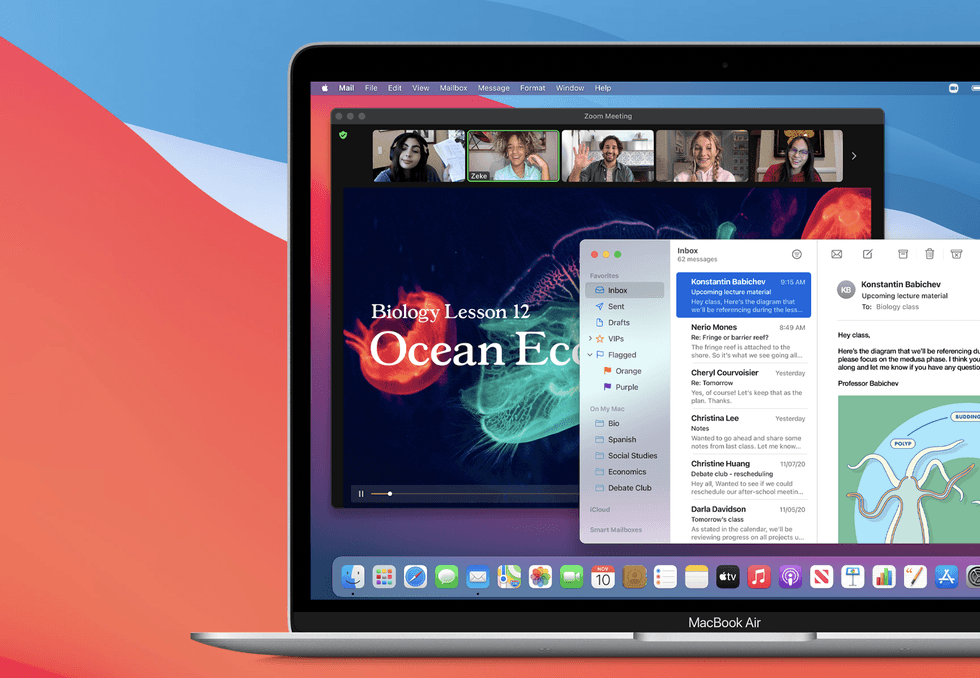 Both the Air and Pro run Apple's new macOS Bug Sur operating system Apple