The Conversation (0)
Camera
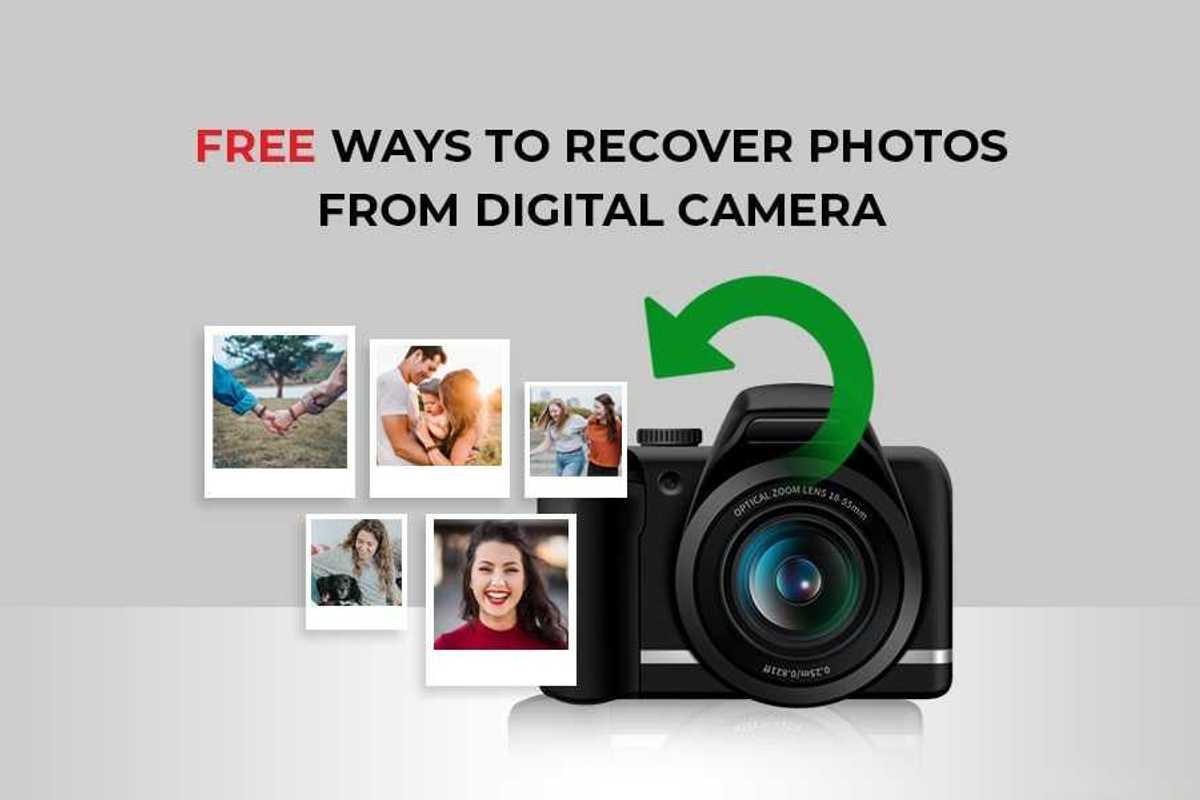
How to Recover Deleted Photos from Digital Camera?
A step-by-step guide to recovering deleted photos from digital cameras, with simple methods, recovery tools, and prevention tips to protect your memories.
I accidentally lost important photos from my digital camera. Is there any free photo recovery method that can help me restore these lost photos?
Losing photos from your digital camera can be distressing, especially if they hold valuable memories like vacations, family events, or professional work. Whether your photos were deleted due to accidental deletion, formatting, or for any other reason, there are several photo recovery methods you can try to recover them.
In this guide, we’ll explore different photo recovery methods, ranging from simple solutions to advanced techniques, that can help you recover deleted photos.
Before diving into adequate photo recovery methods to get your lost photos back, it’s important to understand why photos get deleted. Some main reasons for your photo deletion include:
Here are some quick actions that you can consider immediately after photo deletion for smooth and easy photo recovery:
Avoid taking new photos or videos with your camera. Saving new data can overwrite deleted files, making recovery impossible.
Take out the SD card from your camera safely to prevent further data writing.
If the card was formatted, do not reformat it multiple times—it reduces the chances of recovery.
Connect your memory card to a computer using a good-quality card reader for recovery.
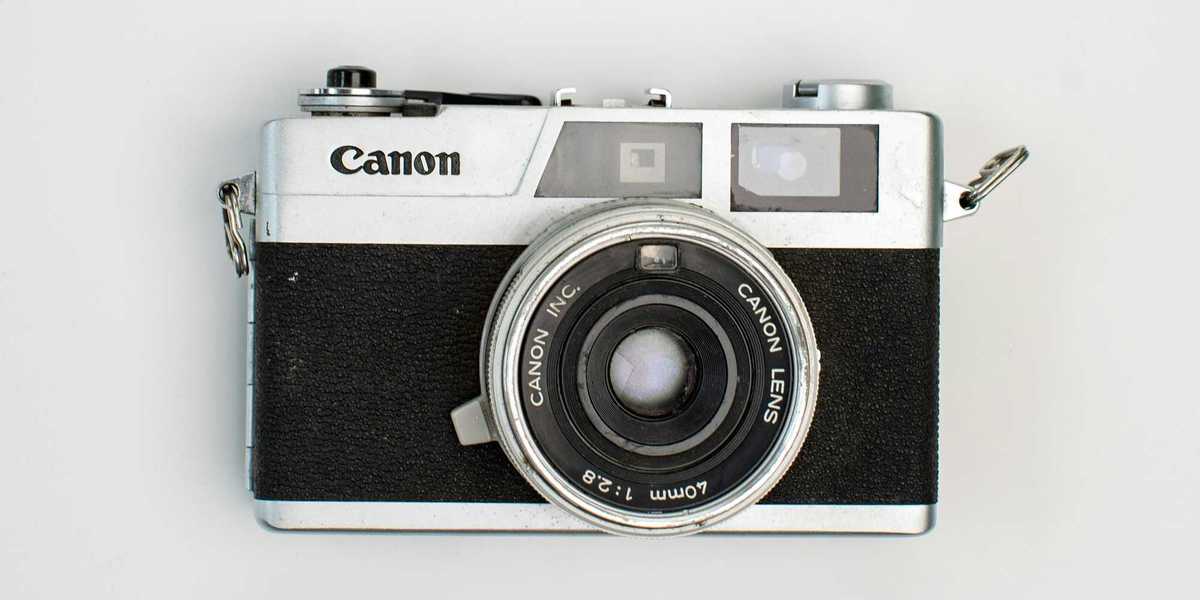 Quick Methods to Recover Deleted Photos from Digital Camera Photo by Pedram Farjam on Unsplash
Regardless of the reasons above for deleting photos from your digital camera, several photo recovery methods can help you restore them. Below are some quick methods that can help you restore your deleted photos:
Some modern digital cameras offer an in-built “Trash” or “Recently Deleted” folder that contains all your recently deleted photos. Follow the steps below to get your photos via this folder:
Note: This is the easiest method, but it works only if your camera supports this feature.
If you’re good at maintaining backups of your photos (using a computer, an external drive, or cloud storage), these backups can help you easily restore your deleted photos. All you have to do is:
Instances may happen when you don’t have a backup of your lost photos. In such a case, you can use free third-party photo recovery software, such as Stellar Photo Recovery, to restore your photos. This photo recovery tool supports recovering photos deleted due to accidental deletion, formatting, memory card corruption, and other causes. The software is best known for its user-friendly interface, which lets you recover lost or deleted multimedia files in several file formats. Along with photos, you can use this tool to restore deleted video and audio files in multiple formats from various storage media, including SD cards, hard drives, and USB drives.
Key Features of Stellar Photo Recovery Software
Here are some standout features that make the Stellar a perfect choice for your photo recovery:
Here’s how to recover deleted photos from a digital camera using this photo recovery software:
Step 1: Firstly, download and install Stellar Photo Recovery on your PC from its official website. Avoid installing it on the same drive where data was lost.
Step 2: Connect the memory card from your digital camera, where your photo was stored before deletion, to that PC using a reliable card reader.
Step 3: Launch the software and from the home screen, select the type of data you want to recover (photos, videos, or audio). Click Next to continue.
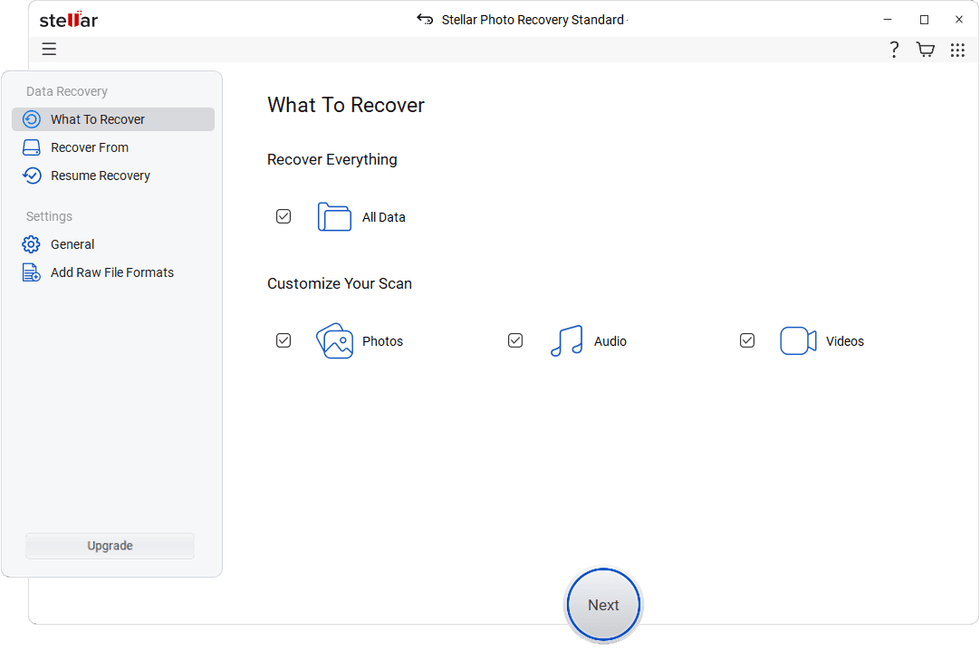 Step 3Stllar Photo Recovery
Step 4: Choose your memory card from the list of available drives and click on the “Scan” button to start the recovery process.
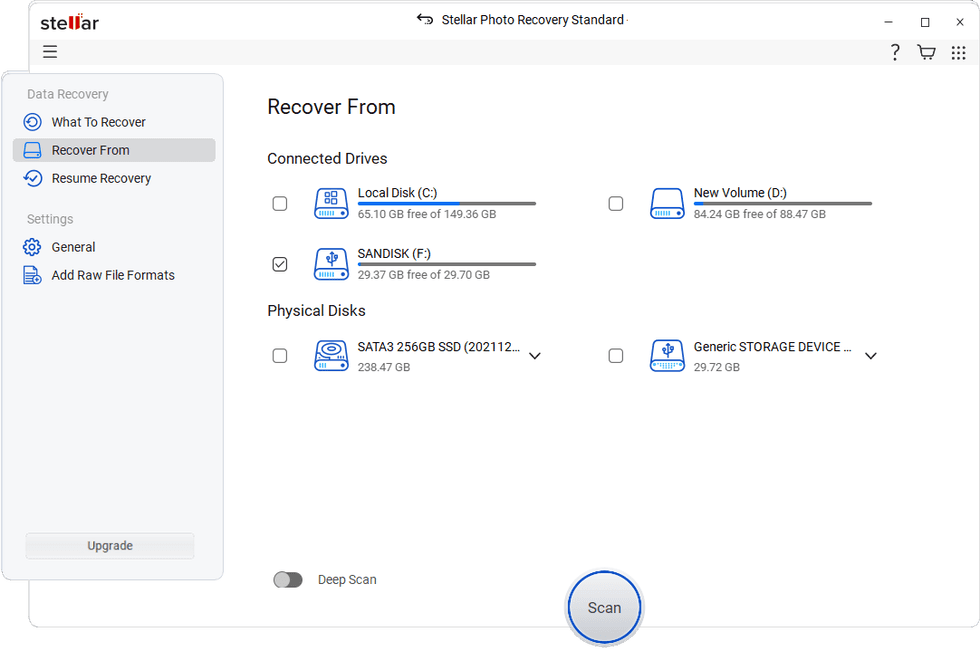 Step 4Stellar Photo Recovery
Step 5: Once the scan is complete, preview the recoverable files and click Recover to save recovered photos to your device.
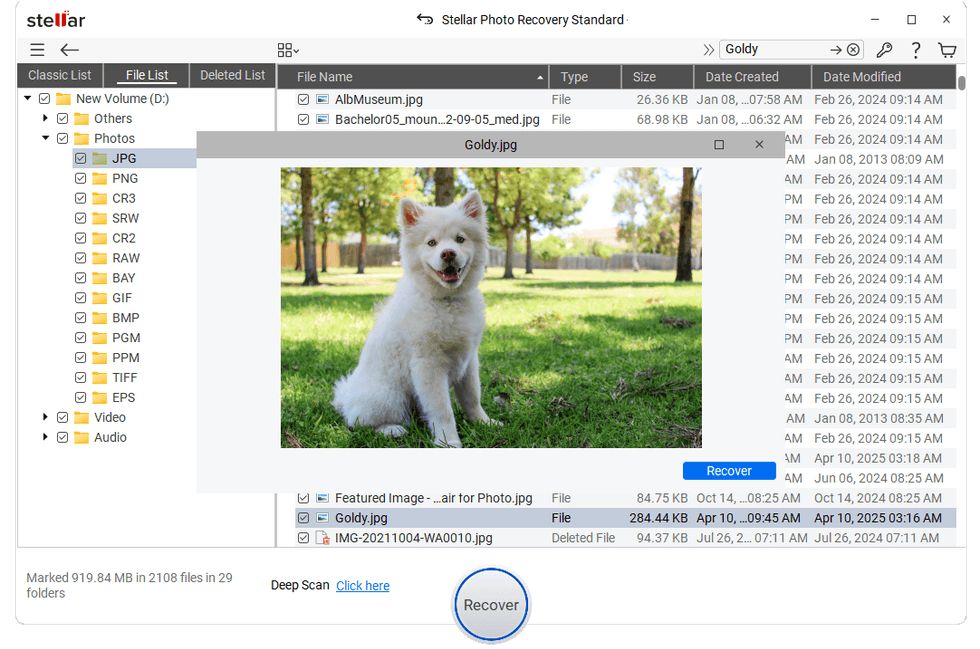 Step 5Stellar Photo Recovery
Now that your photos are recovered from your digital camera, here are some additional preventive measures that you can consider to avoid such photo loss issues in the future:
A sudden photo loss from your digital camera may erase your precious captured moments, but they aren’t lost forever. Whether you accidentally deleted images or formatted your memory card, using the aforementioned photo recovery methods can help retrieve your valuable data. Start by checking the previously created backups, or use third-party photo recovery software to recover your lost photos. Most importantly, adopt preventive measures such as regular backups and safe card handling to avoid losing your precious memories again.
GearBrain Compatibility Find Engine
A pioneering recommendation platform where you can research,
discover, buy, and learn how to connect and optimize smart devices.
Join our community! Ask and answer questions about smart devices and save yours in My Gear.