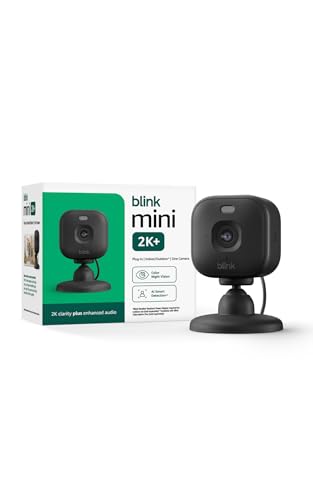
Most people set up a smart camera once, point it at the front door or the living room, and move on. The app gets installed, the account gets created, and from there the device just runs. What doesn't happen, for most owners, is a follow-up audit of who and what can still see that feed.
This guide treats that audit as a practical task, not a threat scenario. If you own a connected camera, a smart display, or any indoor security device, here's how to systematically tighten what you've already set up.
Camera Access Is a Browser Problem Too, Not Just a Hardware One
 Camera Access Is a Browser Problem Too, Not Just a Hardware One Yi
The Lucky Crush editorial team makes this point clearly when they look at the broader permission landscape. The habit of checking which platforms have been granted camera and microphone access doesn't stop at the smart home hub on your shelf. Web browsers expose a permission API that lets any website request access to the device's camera and microphone, and those grants can accumulate silently over time.
The team observes that browser-based real-time video services deserve the same scrutiny as a smart camera. Someone evaluating an alternative to StripChat should vet that platform's permission practices and privacy policies before granting webcam and microphone access, not after the session has started. That evaluation mirrors the same firmware-and-permissions audit that makes sense for a Ring doorbell or an Echo Show. The underlying question is identical in both contexts: what have you authorized, and do you still mean to?
App Permissions and Two-Factor Authentication as Your First Audit Step
Pull up the companion app for whatever camera you own. Ring, Nest, Arlo, and similar platforms all include a connected accounts or third-party integrations section where you can see which external apps and services hold permission to interact with your camera account. Some of those connections may date back to a smart home automation you set up and forgot about. Revoke anything you don't actively use.
While you're in the account settings, enable two-factor authentication if it isn't already on. Two-factor authentication adds a second verification step so that a stolen password alone isn't enough for an attacker to access your camera feed. It's one of the highest-return security steps available, and it takes about two minutes to set up.
What Your Camera Is Actually Sending, and Where It Goes
 What Your Camera Is Actually Sending, and Where It Goes iStock
By default, smart home cameras transmit video and audio data to cloud servers operated by the device manufacturer. That's the baseline most people are running on without realizing it. For many households, that's an acceptable arrangement, but it's worth knowing you've agreed to it.
If you'd rather keep your footage off your home network, local storage options exist. A microSD card slot or a network-attached storage device keeps recordings on your own hardware rather than uploading them to a remote server. If you prefer cloud storage, end-to-end encryption is the key differentiator to look for. When a service uses end-to-end encryption, only you and the intended recipient can decrypt the footage, which means the provider itself can't read the stream in transit. Not every service offers this, so check the privacy documentation before you assume it does.
Auditing Permissions at the OS Level After Every Major Update
Your phone and your computer both maintain a centralized permissions panel that lists every app with granted access to the camera and microphone. On iOS, it's under Settings and Privacy. On Android, it's in the Privacy section of the main Settings menu. On macOS and Windows, a similar panel exists in System Preferences and Privacy Settings, respectively. Scroll through it. Toggle off any app that has no legitimate reason to hold those grants.
The habit that matters most here isn't the initial review. App updates can introduce new permission requests or quietly expand existing ones, so check the connected-apps list again after any major update to your camera's companion app or any app that touches your camera account. Treat it the same way you'd treat changing a password after a suspicious login: a prompt, not an afterthought.
Hardware Shutters, Firmware Discipline, and Network Segmentation
Software controls are only as reliable as the software itself. That's where physical safeguards come in. Smart displays, including Echo Show devices, include a dedicated hardware button or physical shutter that cuts power to the camera entirely, independent of whatever software is running. If a camera supports a physical lens cover, use it when you don't need the device. This provides a device-level guarantee that video can't be transmitted even if an account is compromised.
Firmware updates matter too. Regular firmware releases for cameras and smart displays include security patches that close known vulnerabilities, so enable automatic firmware updates rather than deferring them indefinitely. Finally, consider where your cameras sit on your home network. Placing IoT devices on a dedicated guest network or separate network segment keeps them isolated from your main devices. If a camera is ever compromised, that separation limits what else on your network is exposed.
Camera privacy isn't a configuration you finish and walk away from. It's a periodic review tied to events that change your setup: a device update, a new account, an additional camera on the network. Keep the audit short and repeat it. That's what actually keeps the access picture accurate.
From Your Site Articles
Related Articles Around the Web
 Camera Access Is a Browser Problem Too, Not Just a Hardware One Yi

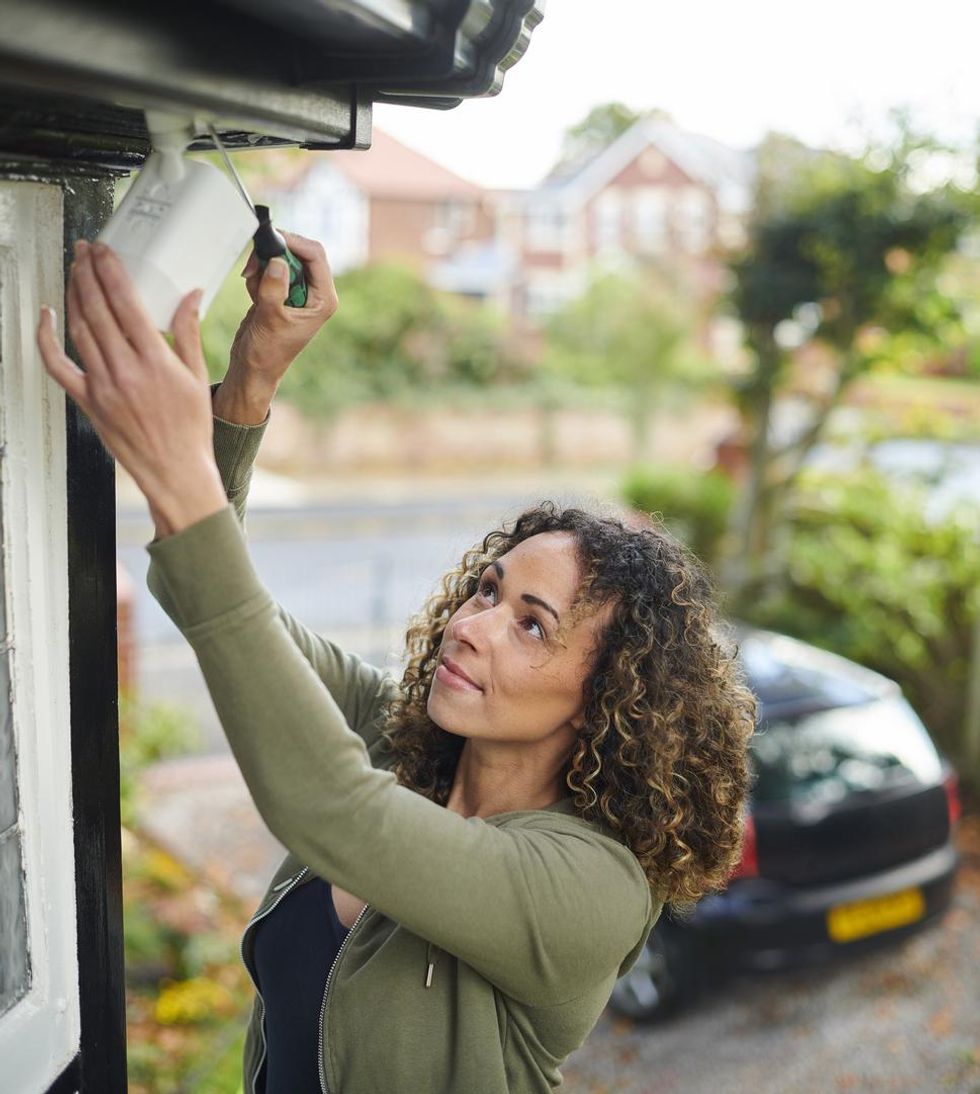 What Your Camera Is Actually Sending, and Where It Goes iStock