The Conversation (0)

The most useful smart blind is one you rarely need to think about. It closes before the room becomes exposed at night, reduces afternoon screen glare, and joins a movie scene alongside the lights. Matter provides a common connection standard that can help supported Kincmo shades participate in those routines.
Kincmo's native Matter-over-Thread blinds need a compatible Matter controller and Thread border router. Once paired, supported platforms can provide app control, voice commands, and automations. Kincmo also offers a different route using a compatible standard motor with its Matter hub; confirm that configuration's requirements separately.
This guide explains both paths, then walks through pairing and practical automation recipes. It draws on Kincmo and platform documentation checked November 17, 2026. GearBrain has not independently tested these Kincmo integrations; recipes are suggested configurations, subject to the controls and triggers exposed by your devices and apps.
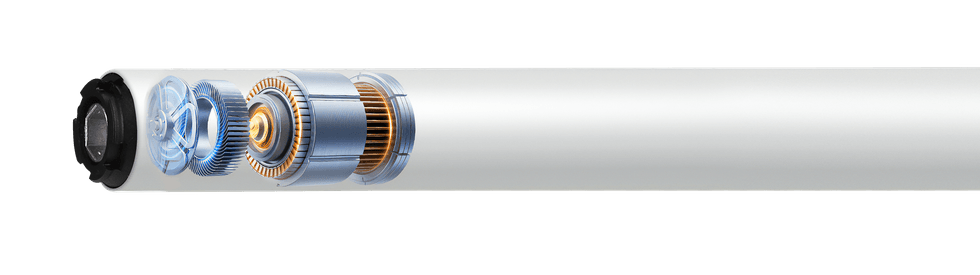 A Matter motor inside a smart shade Kincmo
Matter is the common smart-home control standard. Thread is the low-power network used by Kincmo's native Matter-over-Thread motor. They perform different jobs: Matter establishes a shared control language, while Thread carries the shade's network traffic.
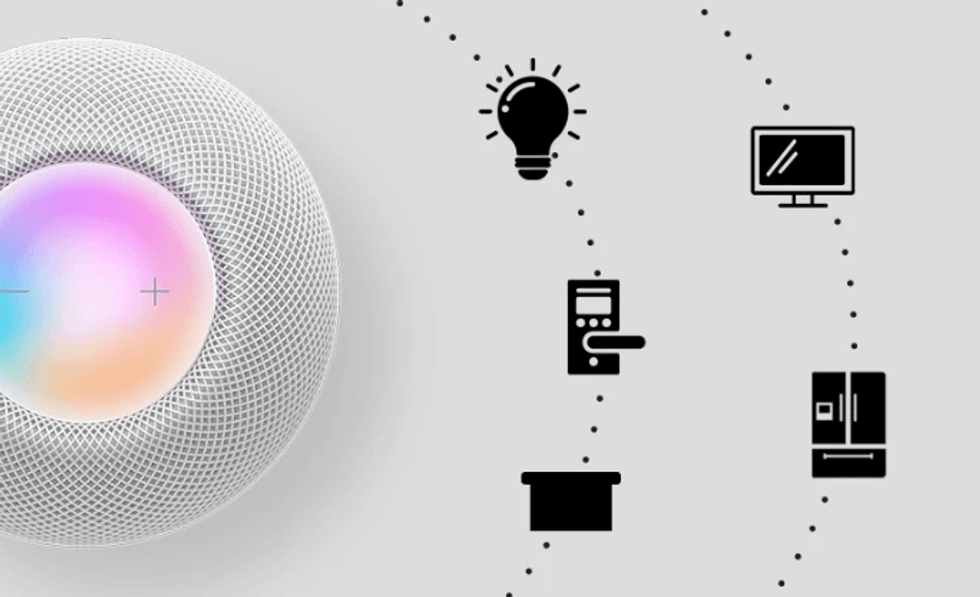
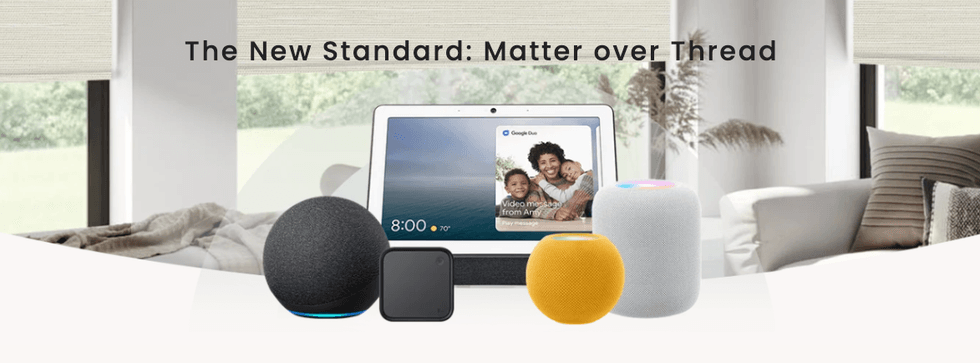
Kincmo advertises its Matter-over-Thread shades for Apple Home, Amazon Alexa, Google Home, and Samsung SmartThings. Its guidance requires compatible Matter controller and Thread border router hardware; it identifies HomePod mini as one example providing both roles for Apple Home. Kincmo Matter guidance.
| Component | Job in the setup | Buying implication |
|---|---|---|
| Matter-enabled shade | Receives supported window-covering commands | Select the correct motor |
| Matter controller | Adds and controls Matter devices within an ecosystem | Verify your platform supports the hardware |
| Thread border router | Connects the Thread network to the home network | Required for the native Thread configuration |
| Phone and ecosystem app | Commission the device and manage control | Update the app and grant setup permissions |
“No proprietary bridge” does not mean “no home hardware.” A compatible controller and Thread border router may already be in your house, but the logo on an older smart speaker doesn't mean it provides both functions.
 Native Matter motor versus Kincmo Matter hubKincmo
Kincmo's motor-selection guide describes standard remote motors, native Matter-over-Thread motors, and its Matter hub for compatible standard motors.
With the native motor, you commission the shade as the Matter device. With the hub route, use the hub's instructions to link supported shades and expose them to the ecosystem. Confirm the hub's network connection, supported motor models, and controller requirements before ordering. Do not apply Thread-motor instructions automatically to the bridge.
If you are still choosing fabric, dimensions, or mounting, start with the companion Kincmo Smart Blinds Buying Guide.
The value comes from connecting shade movement to situations you already recognize.
| Benefit | Useful example | What it depends on |
|---|---|---|
| Less daily effort | Open the bedroom shade on weekday mornings | Reliable schedule and powered controller |
| More consistent privacy | Close living-room shades at sunset | Location/time settings and suitable fabric coverage |
| Easier glare management | Lower the office shade before afternoon sun reaches the screen | Window orientation and an appropriate schedule |
| Convenient access | Use voice or app control for a hard-to-reach window | Supported platform and good connectivity |
| Coordinated rooms | Close shades and dim lights with a movie scene | Devices available together in the platform |
| Household flexibility | Use supported Matter sharing across ecosystems | Each platform's requirements and exposed functions |
| Comfort management | Close sun-facing shades when the room warms | Separate compatible sensor and automation support |
Managing sunlight may reduce unwanted heat gain under suitable conditions. Actual energy savings depend on glazing, climate, fabric, orientation, and household behavior; this guide does not establish a savings percentage.
Mount the shade securely, charge it as directed, and test remote operation first. Identify the exact motor on your order rather than guessing from the shade's appearance.
Keep the Matter QR code and numeric setup code accessible and private. Update your phone, controller, and ecosystem app, and put the motor into pairing mode using its own instructions. Reset-button timings can vary, so generic instructions from another shade brand are a poor substitute.
During commissioning, keep the phone and relevant network hardware reasonably close to the shade. After pairing, check operation from its final installed location before creating routines.
 How to connect Kincmo blinds to Apple Home Apple
For the native Matter-over-Thread motor, set up compatible Apple Home/Thread hardware first. Then:
Apple documents the add-accessory flow and Matter code entry in its Home setup instructions. Kincmo also provides an Apple Home compatibility overview.
Try a simple command such as “Siri, close the office shade” after app control works. Confirm the action before adding multiple windows to a scene.
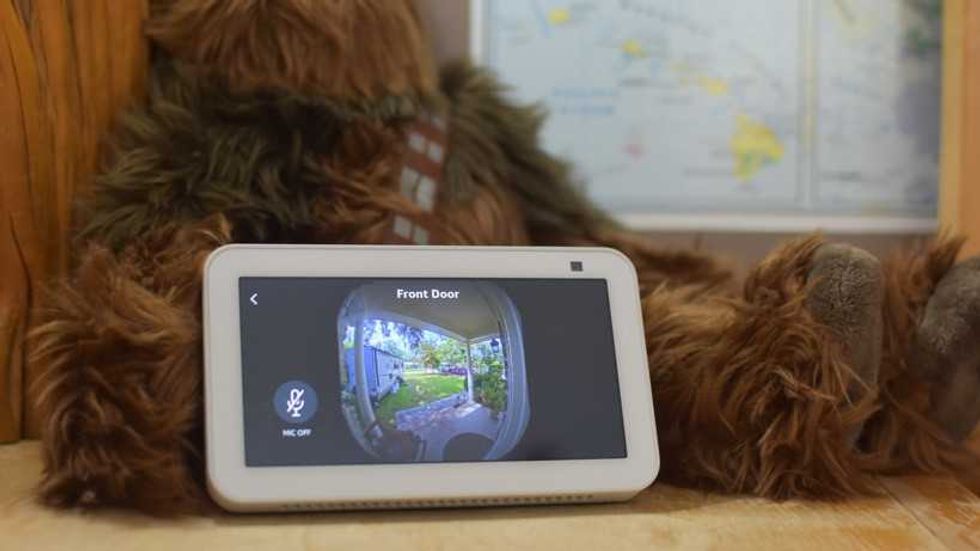 How to connect Kincmo blinds to Amazon Alexa Amazon
Verify that your Alexa setup supports Matter and provides the Thread network needed by the native motor. Not every Echo is necessarily a Thread border router.
Amazon recommends placing a Matter device within 30 feet of a compatible hub/device during setup and specifically calls for Thread-enabled hardware for Thread products. Alexa Matter setup.
Kincmo describes scheduling, scenes, and voice control on its Alexa page. Test the actions actually exposed for your motor; percentage positioning and group behavior should be checked rather than assumed.
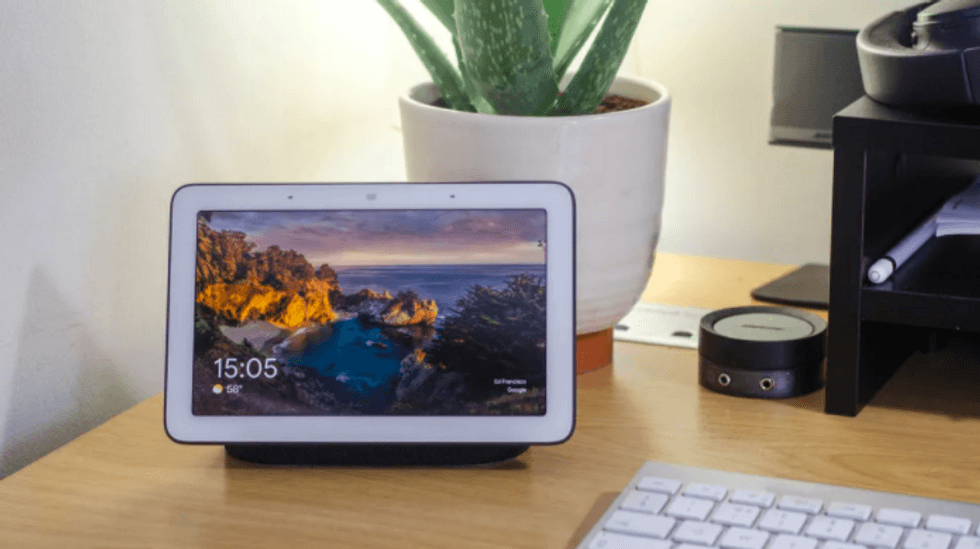 How to connect Kincmo blinds to Google Home Google
Google requires a compatible Matter hub and, for Thread devices, a Thread border router. Its Matter guidance also specifies IPv6 on the home network and Bluetooth-capable commissioning hardware.
Use the Google Home app's add-device flow for a Matter-enabled device, scan the shade's code, and follow the prompts to choose the home and room. Menu labels vary by app version. Confirm that the shade responds in the app, then test your preferred voice command. Google Matter requirements and setup.
Kincmo's Google compatibility page describes routines and voice control, but the platform's actual device controls determine what you can automate.
Use a compatible SmartThings Matter controller and the Thread infrastructure required for the native motor.
In SmartThings, open the add-device flow and choose QR scanning. Scan the Matter label, follow the prompts to select the hub and room, then name the shade. Test opening, closing, and any position controls exposed in its device card.
Samsung explains that Matter controller support and Thread border router support are separate capabilities. Check your exact hub model. SmartThings Matter integration. Kincmo lists SmartThings compatibility for its supported smart setup.
An automation has a trigger and an action, sometimes with extra conditions. For example: at sunset, close the living-room shade. A scene stores desired device states, such as closed shades and dimmed lamps, and you can launch it manually or via an automation.
Build one routine at a time. Start with open/close commands, then add positions or sensor conditions if your platform exposes them.
Apple supports time, arrival/departure, accessory-state, and sensor-based automations. Thread accessories require the appropriate home infrastructure for automation. Apple automation instructions.
Buyer benefit: evening privacy follows seasonal sunset changes instead of requiring a fixed closing time that you adjust every few weeks.
Amazon's routine editor supports events and multiple actions; the choices shown depend on the configuration. Alexa routine instructions.
Buyer benefit: predictable daylight at your preferred time. If sunrise is too early in summer, a fixed weekday schedule may suit you better than a sunrise trigger.
Google's household routines require a starter and an action; editor labels can differ across app versions. Google routine creation.
Buyer benefit: less interruption to your workday. A time-based routine needs no separate sensor, but you should adjust it as sunlight patterns change.
Samsung's routines use If conditions and Then actions. Only supported devices and controls appear in the editor. SmartThings routine instructions.
Buyer benefit: shade movement can respond to actual room conditions. The blind does not need an integrated temperature sensor, but the separate sensor must expose the necessary trigger to SmartThings.
 What Works with Samsung SmartThings Samsung
These are suggested recipes, not claims that every app or Kincmo model supports every trigger.
| Routine | Trigger | Action | Extra requirement or check |
|---|---|---|---|
| Morning daylight | Weekday time | Open bedroom shade | Confirm the schedule suits all occupants |
| Evening privacy | Sunset | Close living-room shades | Fabric and edge coverage still determine privacy |
| Movie time | Manual scene or supported voice phrase | Close shades and dim lights | Compatible lamps in the same platform |
| Afternoon comfort | Supported temperature condition during sunny hours | Close selected sun-facing shades | Separate compatible sensor |
| Away schedule | Defined times while away, where supported | Change shade positions | Presence permissions or an enabled vacation schedule |
Google documents time, presence, and supported device/sensor starters, while warning that not all devices support every action or trigger. Use the options actually shown in your editor. Google automation capabilities.
In Apple Home, choose + → Add Scene → Custom, name it “Movie Time,” and add the shade and compatible lights. Set the shade closed and the lights to the preferred level, test, then save. Apple's scene instructions explain how to store and test accessory states.
In other ecosystems, use their scene or manually triggered routine equivalent. Add the shade action first, test it, then add lighting or other devices. This makes failures easier to diagnose.
For away routines, use a deliberate schedule rather than assuming randomized movement is built in. Shade movement may make a home look occupied, but it doesn't prevent intrusion.
 Can one Kincmo shade work in more than one ecosystem?Kincmo
Matter supports sharing an onboarded device with another compatible ecosystem through a multi-admin setup. Start from the first platform's device-sharing controls and generate a new setup code; then use that code in the second platform.
Samsung notes that the sharing code differs from the original printed QR code. Each ecosystem still has its own controller requirements and may expose different features. Matter sharing guidance.
Choose one platform to own the everyday schedules even if several can control the shade. Otherwise, a morning routine in one app can conflict with a privacy or away routine in another.
Matter supports local device control, but that doesn't mean every voice command, remote-access feature, or automation will work during an outage. Google explains that its Matter hub can send commands locally over the home Wi-Fi or Thread network. Google Matter guidance.
Availability still depends on the controller, powered network hardware, and the services the routine uses. Keep the supplied remote accessible and test the behavior you need before depending on it.
| Symptom | What to check first |
|---|---|
| Remote works; smart pairing fails | Exact motor, pairing mode, Matter controller, and Thread requirements |
| QR code is inaccessible | Supplied documentation or a private photo of the correct motor's label |
| Shade appears but does not move | Motor power, obstruction, and basic remote operation |
| Open and close are reversed | Model-specific direction and limit instructions |
| Routine does nothing | Enabled status, correct home/room, trigger conditions, and exposed device action |
| Shade moves unexpectedly | Duplicate schedules, scenes, and shared-ecosystem automations |
| Operation drops out at one window | Network coverage and power to the relevant controller/border router |
Run the shade action manually. If that works, inspect the routine's trigger and conditions. If it fails, troubleshoot the device connection first. Factory reset should follow the correct motor instructions; it is not the first step for every routine problem.
Avoid opposing temperature routines with the same threshold. For example, close at a higher temperature and reopen at a distinctly lower one, with sensible timing restrictions, if your platform supports those conditions. This reduces repeated movement near the threshold.
 Frequently asked questions for Kincmo shades Kincmo
No. It provides a common integration path, while apps, controllers, firmware, and exposed capabilities determine the controls and automations you can use.
Kincmo's native Matter-over-Thread path uses a compatible Matter controller and Thread border router. The brand's hub for compatible standard motors is configured separately.
Potentially, with a separate compatible temperature source and a platform that supports the required trigger and shade action. Confirm those capabilities before purchasing the sensor.
Use the room, group, scene, or routine controls exposed by your system. Test each blind individually first and do not assume grouped commands guarantee perfectly synchronized physical movement.
Start with a simple evening privacy schedule. Once that works reliably, add a morning routine, then multi-device scenes or sensor conditions.
Select Kincmo's connection path around your existing home hardware, then start small. A well-tested sunset routine can provide more everyday value than several overlapping automations that no one in the household understands.
Matter can make shade control easier to combine with supported devices from other brands. The benefit for buyers is practical: fewer repeated adjustments, more consistent privacy, and convenient control through the system they already use.
Remember to use GearBrain Assistant, our product find engine, which can help you easily find and buy any smart device and find compatible devices with your existing ones.
GearBrain Compatibility Find Engine
A pioneering recommendation platform where you can research,
discover, buy, and learn how to connect and optimize smart devices.
Join our community! Ask and answer questions about smart devices and save yours in My Gear.