Here is a step-by-step setup guide to link pet tech with Alexa, build reliable routines, and keep floors clean, air fresh, and pets safe.
1) What you’ll set up (quick wins)
You’ll connect these devices to Alexa and build reliable, real-world automations:
- Cleaning: Narwal Freo Z10 Ultra (robot vacuum & mop)
- Cameras: Petcube Cam 360 (live view on Echo Show/Fire TV)
- Feeding: Aqara Smart Pet Feeder C1 (via Aqara Zigbee 3.0 Hub)
- Air quality: Coway / Rabbit Air / Airdog Pet Air P50 (Alexa-compatible models where available)
- Tracking: Apple AirTag, Chipolo One Spot, Galaxy SmartTag 2 (ecosystem workarounds)
- Wearables: Halo Collar 5 (app-first; integrate via notifications & reminders)
- Grooming: Petaboo Airy 150 Pro (manual device; add to routines via reminders)
Network note: Keep a stable dual-band Wi-Fi (2.4 GHz for many IoT devices; 5 GHz for phones/TVs). Name SSIDs distinctly (e.g., “Home-2G” and “Home-5G”) to avoid pairing headaches.
2) Prerequisites (do these once)
- Install the Alexa app (iOS/Android). Sign in with your Amazon account.
- Create a home map in Alexa
- Alexa app → Devices → + → Add group → create rooms (Kitchen, Living Room, Pets).
- Update firmware on each device in its own app before linking to Alexa.
- Name devices clearly (e.g., “Pet Vacuum,” “Pet Camera,” “Cat Feeder,” “Living-Room Purifier”). Short, unique names = better voice recognition.
3) Connect each device to Alexa (clear, numbered steps)
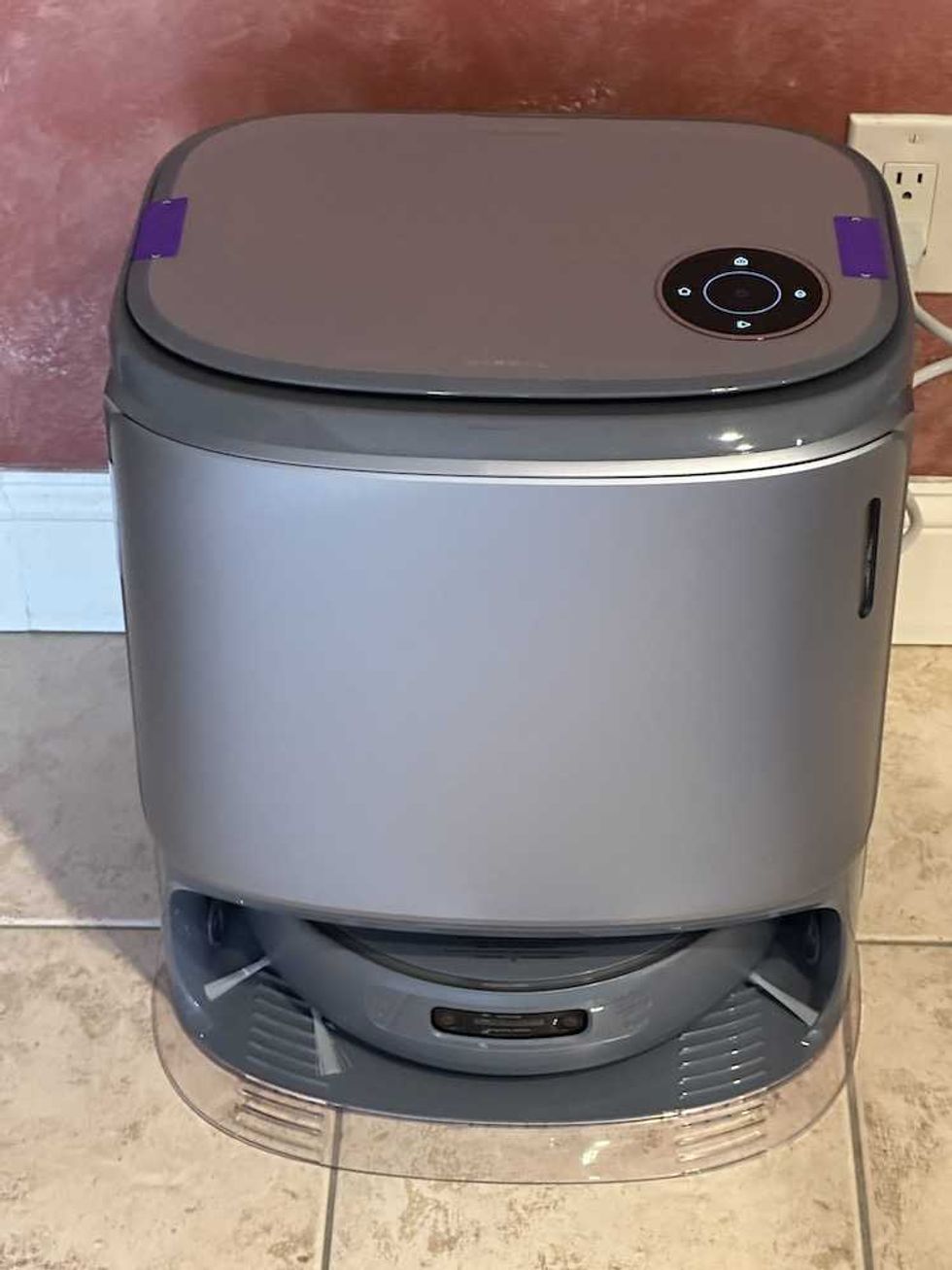
 Narwal Freo Z10 Ultra Robot Vacuum and Mop Combo Review: Premium Hands-Free Cleaning with AI Precision GearBrain
A) Narwal Freo Z10 Ultra (robot vacuum & mop)
- Download Narwal app and complete device onboarding on Wi-Fi. Also, make sure you name your Narwal vacuum, "Pet Vacuum".
- In Alexa app → More → Skills & Games → search “Narwal” → Enable to Use.
- Sign in with your Narwal account → approve permissions.
- Alexa will discover “Pet Vacuum.” If not: Devices → + → Add Device → Robot Vacuum → Narwal.
- Test voice: “Alexa, start Pet Vacuum,” “Alexa, pause Pet Vacuum.”
Tip: Map zones in the Narwal app (e.g., “Kitchen,” “Entryway”) and expose them to Alexa for targeted cleans.
B) Petcube Cam 360 (camera + Echo Show viewing)
- Onboard in Petcube app (connect to Wi-Fi; enable two-way audio & motion alerts).
- In Alexa app → Skills & Games → enable “Petcube” skill → sign in.
- Devices → Cameras → confirm “Pet Camera” is visible.
- Test: “Alexa, show Pet Camera” on an Echo Show or Fire TV.
- Optional: In Alexa app → Devices → Cameras → Pet Camera → enable motion announcements.
C) Aqara Smart Pet Feeder C1 (requires Aqara Zigbee 3.0 Hub)
 Aqara Smart Pet Feeder C1 Aqara
The Aqara Smart Pet Feeder C1 requires an Aqara Zigbee 3.0 Hub (such as the M2, M1S Gen 2, E1, or Camera Hub G3)** and is not directly Alexa- or HomeKit-compatible**. However, you can control it by voice commands via Alexa, Siri, Google Assistant, or SmartThings after creating an Aqara Scene inside the Aqara Home app.
Step-by-step setup:
1. Set up the Hub
• Open the Aqara Home app, add your Aqara Hub (M2, M1S Gen 2, E1, or Camera Hub G3).
• Connect it to your 2.4 GHz Wi-Fi (5 GHz is supported on G3).
• Verify the Hub appears online in the app.
2. Add the Pet Feeder C1
• Tap “+ Add Accessory” → select Pet Feeder C1.
• Pair it via the Hub (Zigbee 3.0).
• Set up feeding plans and portion schedules in the Aqara Home app.
3. Create an Aqara Scene
• In Aqara Home > Automation > Scenes, tap “+ Add Scene.”
• Choose a name (e.g., “Feed the Cat”).
• Under Actions, select Pet Feeder C1 → Dispense Food once.
• Save the Scene.
4. Enable Aqara Home Skill in Alexa
• Open Alexa app → More > Skills & Games > Search ‘Aqara Home’.
• Tap Enable to Use and sign in with your Aqara account.
• This exposes your Aqara Scenes (not the feeder itself) to Alexa.
5. Discover Scenes in Alexa
• Alexa will import your “Feed the Cat” Scene as a triggerable action.
• Test it by saying: “Alexa, turn on Feed the Cat.”
• Or use it inside an Alexa Routine (see Section 4) to run automatically (e.g., “Feed the Cat at 7 AM every day”).
Important Notes:
- The Pet Feeder C1 itself doesn’t appear as a controllable device in Alexa Devices. You must call the Scene name you created (“Feed the Cat”).
- Voice control works because Alexa triggers that Scene through the Aqara Home Skill.
- You can also use Siri Shortcuts, Google Assistant, or SmartThings to activate the same Scene.
- The C1’s 4-liter tank holds roughly 16 cups of food — ideal for cats or small-to-medium dogs.
Pro Tip: If you also have an Aqara Camera Hub G3, create an automation like:
IF Pet Feeder C1 dispenses food → THEN Camera Hub G3 pans to the feeder and records a video.
That way, you can verify feeding events in your video timeline.
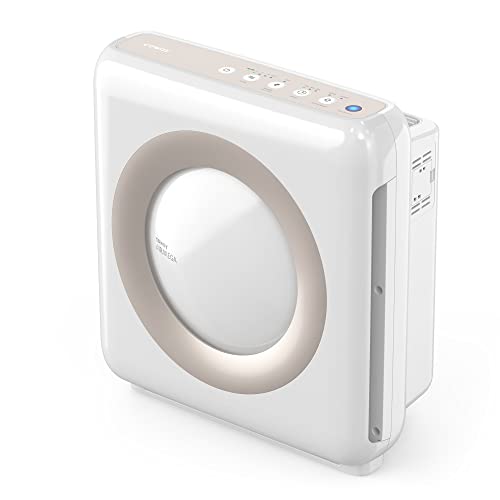
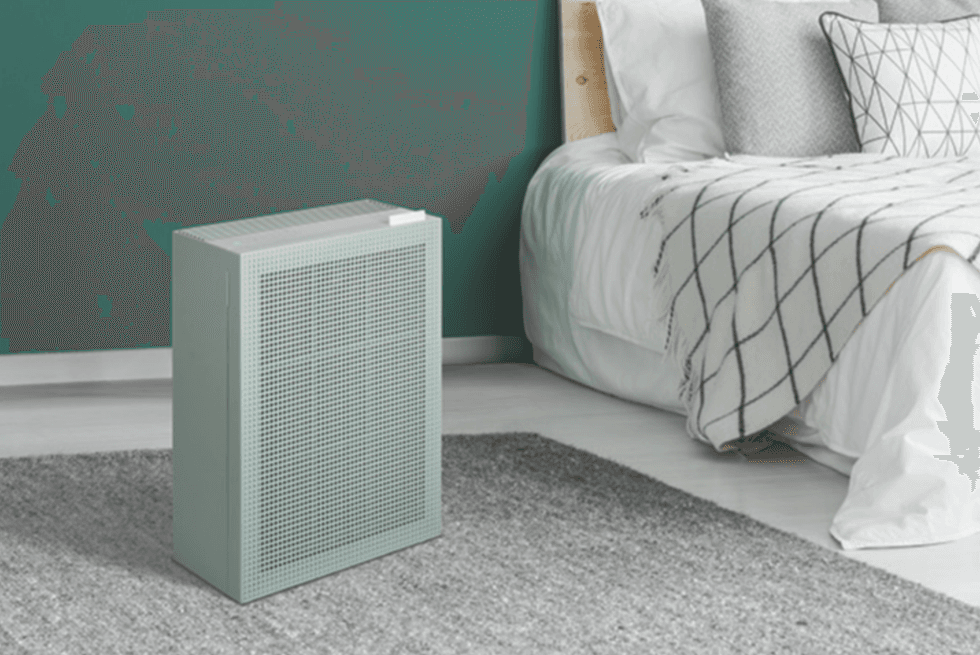
D) Air purifiers (Coway / Rabbit Air / Airdog Pet Air P50)
 The Coway Airmega 150 air purifier Coway
- Coway / Rabbit Air:
- Onboard in brand app; turn on cloud control.
- Enable the corresponding Alexa skill (search brand name).
- Discover devices → Rename to “Pet Purifier.”
- Voice test: “Alexa, turn on Pet Purifier,” “Alexa, set Pet Purifier to Auto.”
- Airdog Pet Air P50:
- If no native skill, control via a smart plug compatible with Alexa.
- Plug P50 into an Alexa-compatible smart plug (e.g., Tapo/Kasa).
- Name the plug “Pet Purifier” and use voice to power it.
E) Trackers (AirTag / Chipolo One Spot / Galaxy SmartTag 2)
These are not Alexa-native. Use them in their native ecosystems and layer Alexa reminders/routines for check-ins.
- AirTag / Chipolo One Spot: iPhone + Find My.
- Add an Alexa Reminder: “Check Buddy’s AirTag at 7 pm.”
- Optional: Use IFTTT or iOS Shortcuts → Alexa Routine via notification announcements.
- Galaxy SmartTag 2: Android + SmartThings Find.
- Use Alexa Reminder or SmartThings → Alexa integration for presence-based prompts.
F) Halo Collar 5 (GPS fence + tracking; app-first)
- Onboard collar in Halo app; create GPS fences & alerts.
- In Alexa, create Routines that announce Halo notifications (see Section 4).
- Add reminders like “Check Halo battery at 9 pm.”
Halo 5 isn’t Alexa-native; integrate via notifications, reminders, and routine announcements.
G) Petaboo Airy 150 Pro (grooming vacuum)
- This device is manual. Add to routines using reminders or a smart plug:
- Plug into an Alexa smart plug named “Groomer.”
- Routine example: Saturday 10 am → turn on Groomer (or just announce “Grooming time”).
4) Build practical Alexa Routines (copy/paste recipes)
Create in Alexa app → More → Routines → +.
Routine 1 — “Feeding Time”
- Trigger: Schedule → Every day at 7:00 am
- Actions:
- Alexa Says → “Feeding time!”
- Smart Home → Cat Feeder → Dispense (custom action if required)
- Smart Home → Pet Purifier → On (15 min)
- Wait 20 min → Pet Vacuum → Clean Kitchen zone
Routine 2 — “I’m Leaving with the Dog”
- Trigger: Voice → “Alexa, I’m leaving with the dog”
- Actions:
- Smart Home → Pet Purifier → Off
- Smart Home → Pet Camera → Enable motion announcements
- Smart Home → Pet Vacuum → Start cleaning
- Alexa Says → “Have a great walk. I’ll keep an eye on things.”
Routine 3 — “Check on Buddy”
- Trigger: Voice → “Alexa, check on Buddy”
- Actions:
- Smart Home → Pet Camera → Show on Echo Show
- Alexa Says → “Opening Pet Camera. Want me to start the purifier?” (Follow-up mode)
- Optional: Smart Home → Pet Purifier → On if you say “Yes.”
Routine 4 — “Shed-Mode Cleaning”
- Trigger: Smart Home → If Pet Camera detects motion in the Living Room after 3 pm
- Actions:
- Smart Home → Pet Vacuum → Spot clean Living Room
- Smart Home → Pet Purifier → High for 20 min
Routine 5 — “Halo Fence Check”
- Trigger: Schedule → 8:00 pm daily
- Actions:
- Alexa Says → “Time for Halo fence & battery check.”
- Send Notification → “Open Halo app to confirm Buddy is within boundary.”
Pro tip: If your camera or brand app supports Hunches/Guard/Announcements, enable them so Alexa can speak alerts (“Motion at Pet Camera”) during specific hours only.
5) Privacy & reliability settings (do this once per home)
- Voice purchasing OFF: Alexa app → Settings → Account Settings → Voice Purchasing → Off.
- Camera privacy: Cover/disable mic when not needed; use Home/Away schedules.
- Guest mode: For sitters/relatives, create Guest Connect or Household Profiles (limited permissions).
- Network hygiene: Reserve DHCP IPs for fixed devices (router admin → DHCP reservation) to prevent “device offline” issues.
- Naming discipline: Avoid duplicate names (e.g., “Air Purifier,” “Pet Purifier” are distinct).
6) Troubleshooting (fast fixes)
| Symptom | Try this |
|---|
| Device won’t discover in Alexa | Reboot device & router → Update device firmware → Disable/re-enable brand skill → “Discover devices” again |
| Voice commands fail | Shorten device names; avoid homophones; test from Alexa app “Test phrase” |
| Routine runs late | Reduce cloud hops; prefer native skills; hard-wire Echo/Fire TV via Ethernet if possible |
| Camera won’t show on Echo Show | Check stream permission in brand app → Re-link skill → “Alexa, show Pet Camera” |
| Aqara feeder not responding | Confirm Hub online; Zigbee channel not crowded; move hub 2–3 ft from router |
| Purifier won’t auto-start | If no native skill, use a smart plug; ensure purifier powers on to last state |
7) Example room layouts (quick mapping)
- Entryway: Pet Camera, Smart Lock, Halo charging base
- Kitchen: Pet Feeder, Pet Purifier (near feeding zone), Smart Plug for Groomer
- Living Room: Echo Show, Pet Camera #2, Pet Vacuum base
- Bedroom: Secondary Echo device for voice/reminders; do-not-disturb at night
8) Summary
With Alexa at the center, you can turn scattered pet routines into a cohesive, low-effort system: feeding is on time, floors stay clean, air remains fresh, and you can check on your pets from anywhere. For non-Alexa devices (Halo, trackers), you’ll still layer value through reminders, announcements, and routines that keep you proactive and informed.
The result is a calmer home, happier pets, and fewer daily chores — exactly what smart tech should deliver.
Explore our manual compatibility product find engine to discover smart devices that work with your smartphone, Google Assistant, and Amazon Alexa-enabled devices. It’s a preview of what’s coming in GearBrain Assistant — our upcoming AI-powered tool that will make finding compatible smart devices even easier.
From Your Site Articles
Related Articles Around the Web
 Narwal Freo Z10 Ultra Robot Vacuum and Mop Combo Review: Premium Hands-Free Cleaning with

 Aqara Smart Pet Feeder C1 Aqara
 The Coway Airmega 150