The Insta360 Link 2 Pro is a premium AI-powered 4K webcam designed for remote workers, educators, streamers, and content creators who want better video, clearer audio, and more control than a typical laptop camera provides. GearBrain tested the Arctic White model for several weeks across Google Meet, Zoom, and Microsoft Teams to see whether its advanced features justify its $249.99 price.
Disclosure: Insta360 provided GearBrain with an Arctic White Link 2 Pro before its public release so we could test the webcam in real-world conditions. Insta360 had no input into our review or conclusions.
- YouTube Is the Insta360 Link 2 Pro one of the best 4K webcams for remote work, streaming, and content creation?** GearBrain tested the ...
What is the Insta360 Link 2 Pro?
 Insta360 Link 2 Pro unboxedGearBrain
The Insta360 Link 2 Pro is a flagship AI-powered 4K webcam designed for remote workers, content creators, educators, streamers, and anyone who wants better video and audio than a typical laptop camera can provide.
Although the underlying Link 2 Pro hardware debuted earlier in 2026, Insta360 has now released a new Arctic White version. It delivers the same core hardware and performance as the Graphite Black model but gives buyers another option for white, silver, or lighter-colored desk setups.
The Link 2 Pro looks more like a miniature camera mounted on a gimbal than a traditional webcam. Its motorized two-axis gimbal lets the camera physically follow a person as they move, rather than relying exclusively on digital cropping.
Insta360 also released new Link Controller features, including a built-in teleprompter, custom overlays, an In-Meeting Marker for its InSight meeting assistant, and more precise control through Elgato Stream Deck+ dials.
The Arctic White Insta360 Link 2 Pro costs $249.99. That makes it $50 more than the $199.99 Logitech MX Brio Ultra HD 4K webcam we previously tested, but the Link 2 Pro includes physical gimbal tracking and several presentation tools that the Logitech camera does not offer.
Insta360 Link 2 Pro specifications
The Link 2 Pro uses a large 1/1.3-inch sensor with an f/1.9 aperture, Dual Native ISO, HDR, and phase-detection autofocus. It supports video resolutions up to 4K at 30 frames per second or 1080p at up to 60 frames per second.
Other important specifications include:
- 4K video at 24, 25, or 30 fps
- 1080p video at up to 60 fps
- 1/1.3-inch image sensor
- Dual Native ISO from 100 to 3200
- f/1.9 aperture
- 24mm equivalent focal length
- 83.9-degree diagonal field of view
- Phase-detection autofocus from 4.7 inches to infinity
- Up to 4X digital zoom
- Two-axis motorized gimbal
- Two built-in microphones
- AI noise cancellation
- Four audio pickup modes
- HDR video
- Landscape and portrait video
- H.264 and MJPEG video formats
- Magnetic monitor mount
- Standard 1/4-inch tripod connection
- USB-C connectivity with a USB-A adapter included
- Dimensions of 2.8 by 2.3 by 1.5 inches
- Weight of 3.6 ounces without the mount and 5.9 ounces with it
The webcam requires a wired USB connection and does not contain a battery. Insta360 recommends connecting it directly to a USB 3.0 port for the best performance and stability.
What comes in the box?
Insta360 Link 2 Pro and boxGearBrain
The standard Insta360 Link 2 Pro package includes:
- Insta360 Link 2 Pro webcam
- Magnetic monitor mount
- Four whiteboard recognition markers
- USB-C cable
- USB-C-to-USB-A adapter
The magnetic mounting system is one of the webcam’s better design features. The camera sits securely on the mount, while the adjustable clip fit both my MacBook Air and a larger desktop monitor.
The mount also includes a standard 1/4-inch connection for attaching the webcam to a tripod or other camera accessory.
How to set up the Insta360 Link 2 Pro
Setting up the Link 2 Pro on my MacBook Air was quick and easy. Here is the recommended process:
- Attach the magnetic mount to the top of your laptop screen or monitor.
- Place the Link 2 Pro on the magnetic base.
- Connect the included USB-C cable to the webcam and computer. Use the supplied USB-A adapter if necessary.
- Download and install Insta360 Link Controller from Insta360’s website.
- Open Link Controller and check for available firmware updates.
- On a Mac, open Privacy & Security and select Allow when prompted to enable Insta360’s Virtual Camera.
- Select the Link 2 Pro as your camera and microphone in Zoom, Google Meet, Microsoft Teams, or another compatible app.
- Use Link Controller to adjust resolution, framing, tracking, image settings, audio pickup, backgrounds, and presets.
Insta360 recommends using Link Controller version 2.2.4_build14 or later and webcam firmware version 0.3.0.8_build2 or later. Do not unplug the webcam while installing a firmware update.
Once connected, the Link 2 Pro automatically moves through several positions as the gimbal initializes. It then settles into either its broadcasting position or its downward-facing privacy position. That startup movement makes the Link 2 Pro feel more like a robotic camera than a standard stationary webcam.
Testing the Link 2 Pro for video meetings
 Insta360 Link ControllerGearBrain
I tested the Insta360 Link 2 Pro over several weeks on Google Meet, Zoom, and Microsoft Teams.
The video quality was excellent across all three platforms. Colleagues told me that my image looked superb, with sharp detail and natural-looking color. The large sensor and HDR help the camera handle ordinary home-office lighting better than the built-in camera found on most laptops.
The Link 2 Pro’s phase-detection autofocus was also responsive. It can quickly refocus when you hold an object in front of the camera, which is especially helpful for product demonstrations and unboxing videos.
Audio performance was equally impressive. My colleagues described the built-in microphone audio as clean and crisp, and no one had trouble hearing or understanding me. This is important because it means many users will not need to add a separate desktop microphone for routine virtual meetings.
The webcam provides four audio modes:
- Standard: Recommended for most meetings and everyday calls.
- Wide: Captures sound across a broader area.
- Focus: Prioritizes the person in front of the webcam and suppresses more surrounding noise.
- Original: Preserves more natural audio fidelity for streaming and recording.
Insta360 recommends staying within approximately 3 meters in Standard, Wide, or Original mode. Focus mode works best when the speaker is within 1 meter of the webcam.
How well does AI Tracking work?
Insta360 Link 2 Pro sitting ontop of Lenovo MonitorGearBrain
AI Tracking is one of the primary reasons to choose the Link 2 Pro instead of the less expensive Link 2C Pro.
The Link 2 Pro’s two-axis gimbal physically pans and tilts to follow you as you move. During testing, it kept me centered without requiring constant manual adjustments. You can select headshot, half-body, or full-body framing depending on whether you are sitting at a desk, presenting, or moving around a room.
The feature is particularly useful for teachers, trainers, presenters, and content creators who do not remain seated throughout a video.
It can also follow a small group, although Insta360 recommends limiting group tracking to two or three people.
The camera supports gesture controls:
- Hold up your palm to start or stop AI Tracking.
- Make an “L” shape with your hand to control zoom.
- Hold up a peace sign to activate Whiteboard Mode.
For zoom control, wait for the webcam to recognize the “L” gesture. Move your hand upward and hold it to zoom in, or downward to zoom out.
You can also control the camera through Link Controller or a smartphone without installing a separate mobile app.
DeskView and Whiteboard Mode
 DeskView and Whiteboard Mode in Link ControllerGearBrain
The Link 2 Pro provides three especially useful viewing options: AI Tracking, DeskView, and Whiteboard Mode.
DeskView directs the camera downward to show documents, products, or objects placed on the desk. This is useful for influencers and creators who record product unboxings or demonstrations. I experienced a similar feature when testing Logitech’s MX Brio Ultra HD 4K webcam two years ago, and it remains a practical tool on both cameras.
Because the Link 2 Pro has a motorized gimbal, it can tilt downward automatically when DeskView is activated. The stationary Link 2C Pro requires the user to adjust the camera angle manually.
Whiteboard Mode uses the four included recognition markers to identify the edges of a whiteboard. Link Controller then corrects the perspective and centers the board in the video.
I found Whiteboard Mode easy to set up. It should be helpful for remote teams, teachers, consultants, and anyone who needs to explain an idea visually during a call.
Teleprompter and creator tools
 Teleprompter and creator tools in Insta360 Link ControllerGearBrain
The new teleprompter feature is one of the best additions to Link Controller, particularly for creators and influencers.
Users can upload or paste a script and have it scroll next to the camera preview. This keeps the words closer to the webcam, helping the speaker maintain a more natural eye line instead of repeatedly looking down at notes.
It also reduces the pressure to memorize a script when recording a product video, presentation, tutorial, or social media segment.
Link Controller now supports custom overlays as well. A business can add its logo to a video feed, while a creator can add a channel graphic or another visual identifier without waiting for post-production.
Scene Presets let you save combinations of camera angles, image settings, effects, and AI features. For example, you could create separate presets for a close-up meeting, a standing presentation, an unboxing video, and Whiteboard Mode.
InSight meeting assistant
The Link 2 Pro includes access to Insta360’s InSight AI meeting assistant. Its In-Meeting Marker allows users to flag an important moment during a meeting and generate a focused summary of the preceding conversation.
Users can also add a screenshot or capture a photo with the Link 2 Pro to give the summary visual context. This could be useful when a discussion involves a presentation slide, physical product, document, or whiteboard.
Purchasing a Link 2 Pro Series webcam includes a one-time allocation of 300 InSight minutes. Additional minutes and advanced meeting-assistant features require a Pro subscription. That subscription only applies to the AI meeting assistant; it does not restrict the webcam’s normal features.
Backgrounds and Natural Bokeh
 Set up Backgrounds in Insta360 Link ControllerGearBrain
Like most premium webcams, the Link 2 Pro includes a good selection of virtual backgrounds. I found them clean and professional-looking.
Users can choose among:
- Natural Bokeh
- Background Blur
- Virtual background replacement
- Green Screen
Natural Bokeh attempts to create the softer background separation associated with a larger camera lens. Background Blur offers more privacy when you do not want colleagues to see the room behind you.
Results with software-generated backgrounds can vary around hair, glasses, and fast movement, but having several options makes it easier to create a professional-looking call without building a dedicated studio.
Elgato Stream Deck integration
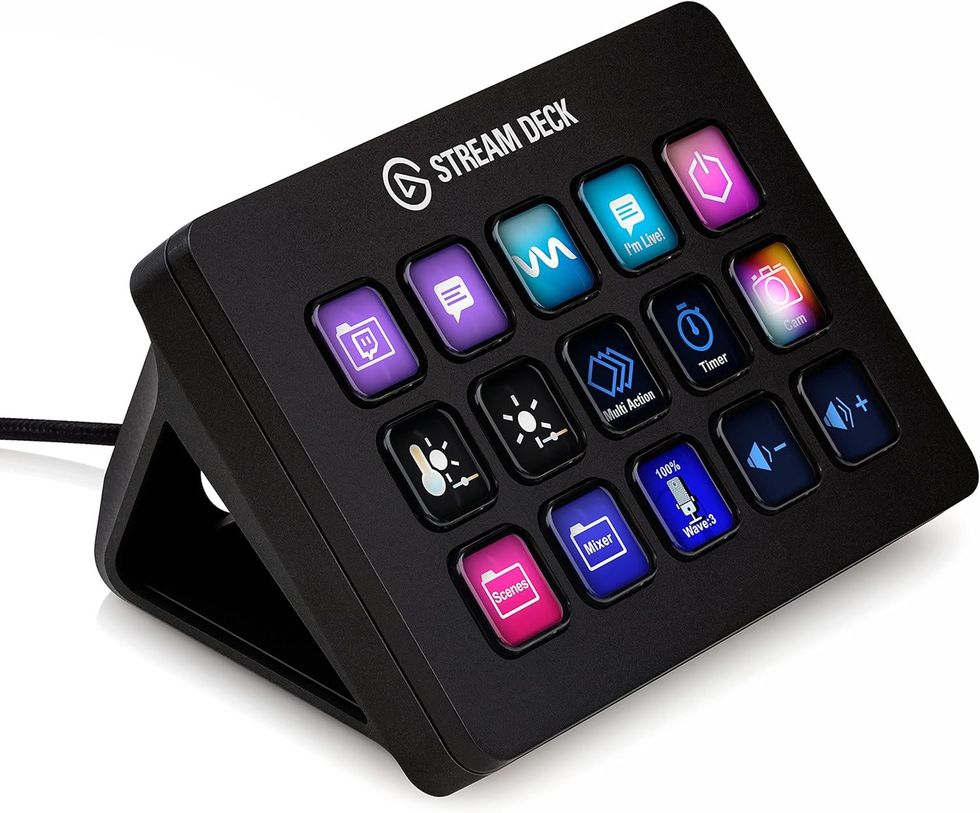
 Elgato Stream Deck MK.2 – Studio Controller works with Insta360 Link 2 Pro Amazon
The Link 2 Pro works with Elgato Stream Deck, allowing creators to activate modes, switch presets, and change camera settings using physical buttons.
The latest Link Controller software adds support for Stream Deck+ dials. Users can map the dials to gimbal position or image settings and make precise adjustments without interrupting a presentation or stream.
I did not have a Stream Deck available during testing, so I could not evaluate this integration directly. Still, it is an interesting option for content creators and smart-home users. Stream Deck can also control compatible smart lights and other connected devices, making it possible to manage the camera, lighting, and production setup from one control surface.
Privacy Mode
 Privacy mode for Link 2 Pro in Link ControllerGearBrain
The Link 2 Pro automatically enters Privacy Mode after approximately 10 seconds of inactivity. The camera rotates downward so the lens is no longer facing the user.
You can also activate Privacy Mode manually by tilting the camera down. While a physical lens cover would provide an additional visual layer of reassurance, the downward-facing position makes it easy to see when the Link 2 Pro is not recording.
Insta360 Link 2 Pro versus Link 2C Pro
 Insta360 Link 2 Pro (White) versus Link 2C Pro (Black)Insta360
Both models provide the same 1/1.3-inch sensor, 4K video, autofocus, HDR, dual microphones, audio modes, DeskView, Whiteboard Mode, backgrounds, and Link Controller features.
The main difference is camera movement.
The Link 2 Pro has a two-axis gimbal that physically follows a person around the room. The Link 2C Pro remains stationary and uses digital Auto Framing to keep people centered.
Choose the Link 2 Pro if you teach, present, demonstrate products, stream, or move frequently while on camera. The Link 2C Pro should be sufficient if you normally sit in one position and want the same core video quality in a smaller design.
Pros and cons
Pros
- Excellent 4K video quality
- Large sensor performs well in ordinary home-office lighting
- Clean, crisp built-in microphone audio
- Fast and responsive autofocus
- Effective physical AI Tracking
- Useful DeskView and Whiteboard modes
- Built-in teleprompter for scripted videos
- Easy setup on macOS
- Secure magnetic mounting system
- Supports Stream Deck and Stream Deck+ controls
- Automatic Privacy Mode
- Distinctive Arctic White design
Cons
- $249.99 price is high for a webcam
- Costs $50 more than the Logitech MX Brio
- Some users may not need the motorized gimbal
- Advanced InSight usage requires a subscription
- Stream Deck hardware is sold separately
- Privacy Mode does not use a physical lens cover
Who should buy the Insta360 Link 2 Pro?
The Link 2 Pro is best suited for:
- Remote professionals who spend several hours a day in video meetings
- Teachers and trainers who move while presenting
- Content creators recording scripted videos
- Influencers who produce unboxings and product demonstrations
- Streamers who want programmable camera controls
- Small businesses that need branded video presentations
- Families who want higher-quality personal video calls
- Remote students who need a webcam for classes and presentations
Someone who participates in only an occasional video call may not need a $249.99 webcam. Likewise, users who remain seated and centered could save money by considering the Link 2C Pro or another fixed-position 4K camera.
GearBrain’s verdict
After several weeks of testing, the Insta360 Link 2 Pro proved to be an excellent premium webcam.
Video quality was superb during Google Meet, Zoom, and Microsoft Teams calls, while the built-in microphones delivered clean, crisp sound. Setup on a MacBook Air was quick, and Link Controller offers considerably more flexibility than the basic software supplied with many webcams.
AI Tracking is responsive and valuable for anyone who moves while speaking. DeskView and Whiteboard Mode make the camera more useful for product demonstrations, remote teaching, and collaborative work. The new teleprompter also gives creators a practical way to improve eye contact and deliver scripted material more naturally.
At $249.99, the Link 2 Pro is not inexpensive. However, its combination of a large 4K sensor, motorized gimbal, excellent audio, intelligent tracking, presentation modes, and creator tools helps justify the premium.
If you need a webcam for work, remote schooling, teaching, streaming, content creation, or simply higher-quality calls with friends and family, the Insta360 Link 2 Pro is an excellent choice. The Arctic White model also looks exceptionally good on a modern desk.
And remember to check out our smart home compatibility find engine, to find other smart devices, including ones that are compatible with Google Assistant, and Amazon Alexa-enabled devices.
From Your Site Articles
Related Articles Around the Web
 Insta360 Link 2 Pro unboxedGearBrain
 Insta360 Link 2 Pro and boxGearBrain
 Insta360 Link ControllerGearBrain
 Insta360 Link 2 Pro sitting ontop of Lenovo MonitorGearBrain
 DeskView and Whiteboard Mode in Link ControllerGearBrain
 Teleprompter and creator tools in Insta360 Link ControllerGearBrain
 Set up Backgrounds in Insta360 Link ControllerGearBrain
 Elgato Stream Deck MK.2 – Studio Controller works with Insta360 Link 2 Pro Amazon
  Privacy mode for Link 2 Pro in Link ControllerGearBrain
 Insta360 Link 2 Pro (White) versus Link 2C Pro (Black)Insta360