

The Conversation (0)

Amazon’s Alexa Home Map replaces the traditional list of connected devices with something more intuitive: an interactive 3D model of your home. Instead of remembering whether a particular light is called “Kitchen Lamp,” “Counter Light,” or “Light 3,” users can locate it in the room where it is installed and control it from the map.
The concept is useful, particularly for larger smart homes with many rooms, cameras, lights, locks, and thermostats. However, Alexa Home Map is more than a visual dashboard. It can contain a floor plan, device locations, camera views, security events, household activity, and—in supported Ring installations—representations of people and vehicles moving around the property. That makes setup, account access, subscription requirements, and privacy just as important as the map’s appearance.
Editor’s note: This is an announcement-based guide using information available from Amazon as of November 2, 2026. Alexa Home Map is scheduled to begin rolling out in preview later in 2026, so supported devices and features may change as Amazon expands the service.
Alexa Home Map is an interactive floor plan that shows supported Alexa-connected devices in their physical locations. Users can move between rooms and floors, filter the map by device type, check device status, and control supported functions without remembering device names.
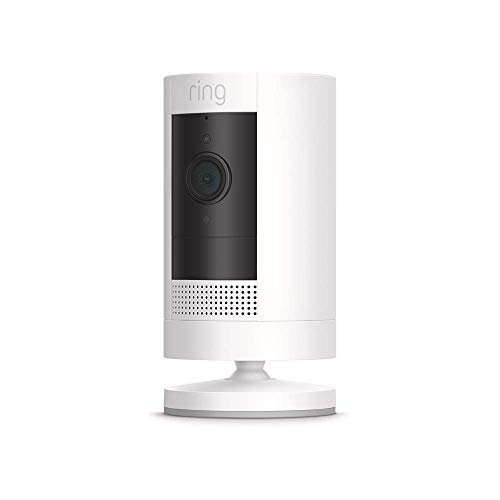
Amazon says the map can display Echo devices, Ring and Blink cameras, Fire TV products, smart lights, locks, thermostats, and other compatible equipment. The exterior view can also work with compatible Ring cameras to display camera previews, security events, and visual representations of detected people or vehicles.
The preview will be available through supported Amazon interfaces, including:
Some functionality requires Alexa+, Ring Protect Pro, Virtual Security Guard, or compatible Ring cameras.
Amazon’s setup process has three main stages: create the exterior, scan the interior, and place connected devices.
Alexa Home Map uses the home address to generate an exterior view of the property. This gives the map a starting point before you add interior rooms and devices.
To build the interior floor plan, users walk through the home and scan one room at a time with a compatible iPhone. The phone’s camera and sensors collect information used to convert the physical space into a digital floor plan.
Amazon’s current support documentation says floor-plan creation and editing require a compatible iOS device. Once the map is created, you can open it on other supported iPhones and iPads using the same Amazon account. Amazon has not announced an equivalent Android scanning process.
For the best results, Amazon recommends:
Map View does not fully support every architectural feature. Amazon says bay windows and rounded walls cannot currently be scanned accurately. Furniture and staircases may appear, but they do not affect device-control functionality.
After the floor plan is complete, users drag their compatible Alexa-connected devices onto the appropriate rooms and locations. A test option can help identify an unfamiliar light by briefly turning it on and off.
Users can place devices individually or as Alexa groups. Users with multiple floors can assign equipment to the correct level and later filter the map by categories such as cameras or lights.
Importantly, Alexa does not appear to automatically determine the precise location of every connected device. The user creates the map and manually places the devices, meaning the finished layout is only as accurate as the information entered.
Amazon says Alexa Home Map supports many of the products already connected to Alexa, including:
| Device category | Expected map functionality |
|---|---|
| Echo speakers and displays | View location, status, and supported audio controls |
| Smart lights | View location and current state; turn on or off and adjust supported settings |
| Smart locks | View location and status; use available Alexa lock controls |
| Thermostats | View location and adjust supported temperature settings |
| Fire TV devices | View the device in its assigned room and access supported controls |
| Ring cameras | Live View, event previews, and additional Ring-specific security features on compatible products |
| Blink cameras | Placement and supported Alexa camera functions, but not necessarily Ring-exclusive features |
| Other Alexa-compatible devices | Core controls depend on the device type and the capabilities exposed to Alexa |
Not every Alexa-connected product can be added. Amazon’s support documentation specifically identifies trackers, printers, and the Ring Car Cam among products that do not work with the current Map View system, while noting that other exclusions also exist.
This makes “Works with Alexa” an important starting point, but not a guarantee that every product will appear on the map or expose all of its native-app features.
Not necessarily.
Third-party lights, locks, thermostats, cameras, and other equipment connected to Alexa should be eligible for placement and core controls when their device categories and functions are supported. For example, a compatible third-party light may appear in its assigned room and allow users to turn it on or off from the map.
However, Amazon has not promised identical functionality for Amazon and third-party hardware. The experience depends on which capabilities each manufacturer exposes through Alexa, the device category, and whether Alexa Home Map supports those capabilities.
The clearest difference involves security cameras. Amazon specifically describes the following advanced features for compatible Ring systems:
Amazon has not said that Blink or third-party camera brands receive this complete set of Ring-specific functions. Therefore, consumers should not assume that every camera connected to Alexa will provide the same animations, recognition, timeline, or subscription-supported features.
The same principle applies to other products: Alexa Home Map can display and control only the functions that Amazon and the device manufacturer make available through Alexa. Advanced settings may still require the manufacturer’s native app.
Creating and using the basic floor plan does not appear to require a separate Alexa Home Map subscription. However, the complete experience can depend on several paid services.
Amazon says certain Home Map features and availability on Echo Show, Fire TV, and Alexa Tablets require Alexa+. Alexa+ is included with an Amazon Prime membership. Amazon also offers a separate Alexa+ plan for customers who do not subscribe to Prime, while a limited free Alexa+ experience is available through the Alexa app, Alexa.com, and supported apps.
Certain security-related Home Map functions require compatible Ring cameras and either Ring Protect Pro or Virtual Security Guard. Amazon has not stated that a basic Ring plan unlocks every Home Map camera feature.
Before buying hardware for Alexa Home Map, consumers should therefore confirm four separate requirements:
If you are deciding which Alexa screen, speaker, or smart-home hub is right for your setup, GearBrain’s Amazon Echo buying guide compares the latest Echo devices, their smart-home capabilities, and the models designed to display Alexa Home Map.
 Who in the household can see and control the map? GearBrain
Household access deserves careful attention. Amazon says anyone in the home can view and interact with Alexa Home Map on shared Echo devices and Fire TVs where the feature is available. That convenience means a wall-mounted or communal screen could expose device status, camera access, lock controls, and the home's physical layout to anyone who can use that screen.
Amazon’s existing Map View documentation says you can open the floor plan on an iPhone or iPad using the same account used to create it. Ring access requires linking the Amazon and Ring accounts. The exact permissions available to different Amazon Family members, Alexa profiles, guests, and third-party household users may depend on the account and device configuration.
Before enabling the map on a shared display, users should review:
Amazon has not yet published a complete Home Map-specific role and permission matrix. Until it does, users should not assume that every family profile receives a separate, restricted view of the home.
At minimum, the feature can associate several sensitive types of information:
Amazon’s Alexa terms say Alexa-enabled products can provide Amazon with information including device type, name, features, status, network connectivity, software performance, and location. Alexa interactions and information from linked third-party services may also be processed and retained to provide, personalize, and improve Amazon services.
Amazon says camera and sensor information from the phone is processed to generate the floor plan. Users can delete the floor plan from the settings in the Alexa, Ring, or Alexa Home Map app. Deleting the map does not delete the other information associated with connected devices.
That distinction is important: removing the floor plan eliminates the spatial map, but it does not automatically disconnect devices, remove their Alexa history, delete camera recordings, or erase information retained by linked services.
Before creating the map, GearBrain recommends that users:
Alexa Home Map could be genuinely helpful in a large connected home. When dozens of devices are spread across several rooms and floors, selecting a product by its physical location can be easier than navigating a list or remembering an exact voice-command name. The unified camera timeline and exterior Ring view may also provide a faster way to understand activity around the property.
The value is less obvious for a small home with only a few connected products. Creating and maintaining a detailed floor plan may be unnecessary when users already know every device name and location.
The more important buying consideration is ecosystem depth. Basic third-party products may appear and provide useful controls, but Amazon’s most advanced Home Map experiences are closely integrated with Ring, Alexa+, and Amazon displays. Consumers building around other security brands should verify exactly which map functions carry over before choosing hardware or paying for subscriptions.
Alexa Home Map is an important step toward a smart home organized around rooms and real-world context, not device lists. It could make larger installations easier to understand and control, especially for households already invested in Alexa and Ring.
But the map also creates a detailed digital representation of the home and does not guarantee feature parity across brands. Third-party devices may receive useful placement and core controls while advanced camera intelligence, synchronized events, and exterior activity views remain tied to compatible Ring products and subscriptions.
The best approach is to treat Alexa Home Map as a new interface—not proof that every Alexa-connected device works the same way. Check the product, platform, display, account, and subscription requirements for each feature before building your smart home around the map.
Amazon’s current documentation says you need a compatible iOS device to scan and edit the floor plan. After you create the map, you can view it in other supported apps and on Amazon devices.
Yes, supported third-party devices connected to Alexa can appear on the map and expose compatible controls. The exact functionality depends on the device category and what the manufacturer makes available through Alexa.
No. Amazon says some devices, including trackers, printers, and Ring Car Cam, are not supported. Other exclusions may apply.
 Does Alexa Home Map work with Blink cameras? Blink
Amazon lists Blink cameras among the products that can appear in Home Map. However, users should not assume Blink cameras receive every advanced feature Amazon describes for compatible Ring systems.
Amazon says household members can use the map on supported shared Echo devices and Fire TVs. Access through mobile apps and linked Ring accounts depends on the account and device configuration. Review household access before enabling camera, lock, or security controls on a shared display.
Yes. Amazon says you can delete the floor plan through settings in the Alexa, Ring, or Alexa Home Map app. Deleting it does not delete the connected devices or other information associated with them.
The basic floor-plan feature does not appear to have a separate fee, but some display, Alexa+, camera, timeline, and security features require Prime, an Alexa+ plan, Ring Protect Pro, Virtual Security Guard, or compatible hardware.
Use GearBrain’s Compatibility Find Engine to see which smart lights work with your existing smart home, voice assistant, and smartphone.
GearBrain Compatibility Find Engine
A pioneering recommendation platform where you can research,
discover, buy, and learn how to connect and optimize smart devices.
Join our community! Ask and answer questions about smart devices and save yours in My Gear.